easyjob Digital Signature
Documentation
Digital signature
Confirming proposals with the signature function
You can embed a link in your proposal report (PDF) that your customer can use to digitally confirm the proposal. They are directed via a Hyperlink to a website where they can accept the proposal . They can enter their Name and E-mail and Signature . Press delete to repeat the signature if necessary.
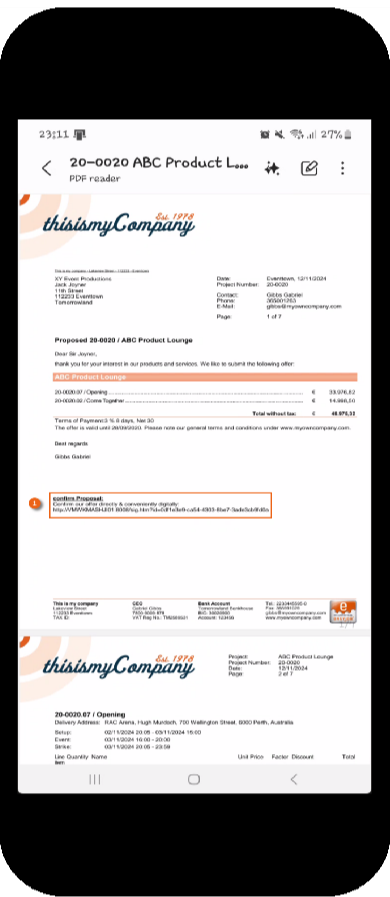
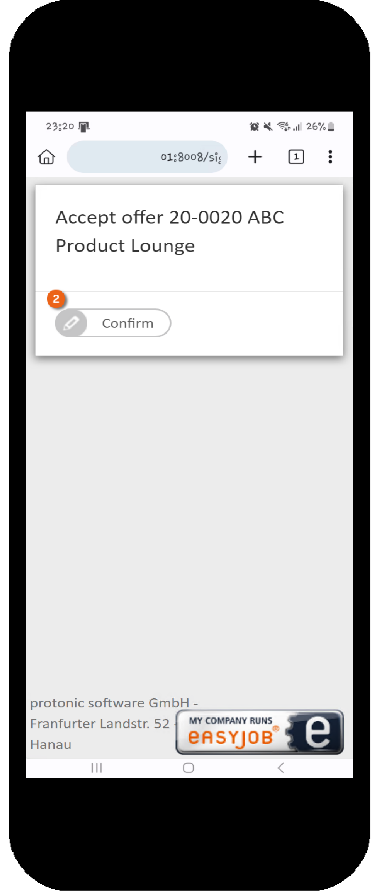
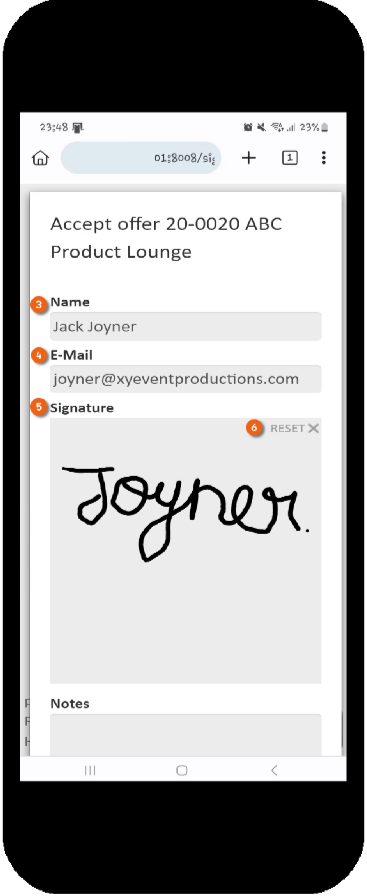
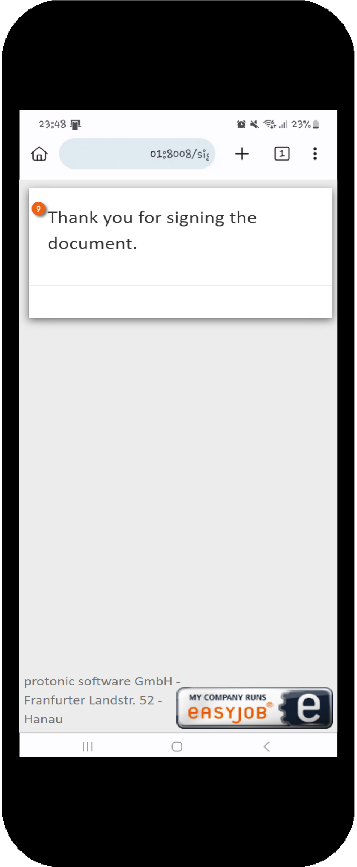
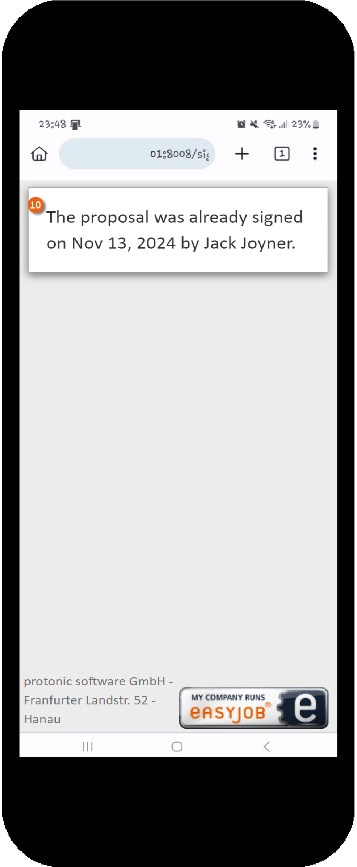
A comments field is also available. After confirming the entries, a message appears that the signature is complete. Each link can be signed only once. If it is activated again a corresponding message is displayed .
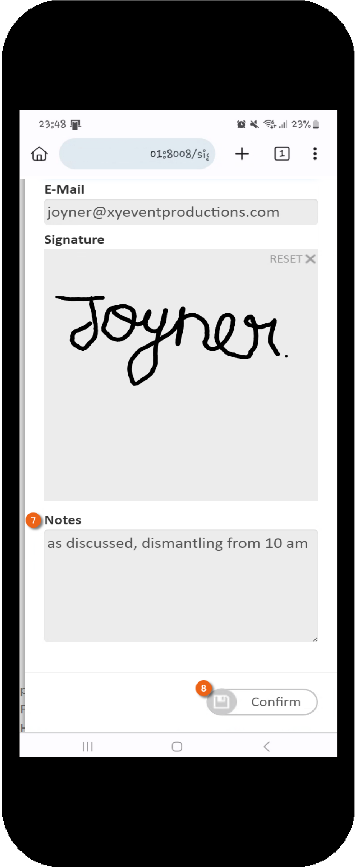
You can embed digital inputs such as Name , Date , E-mail , image of the signature and the comments in your reports, for an order confirmation for example.
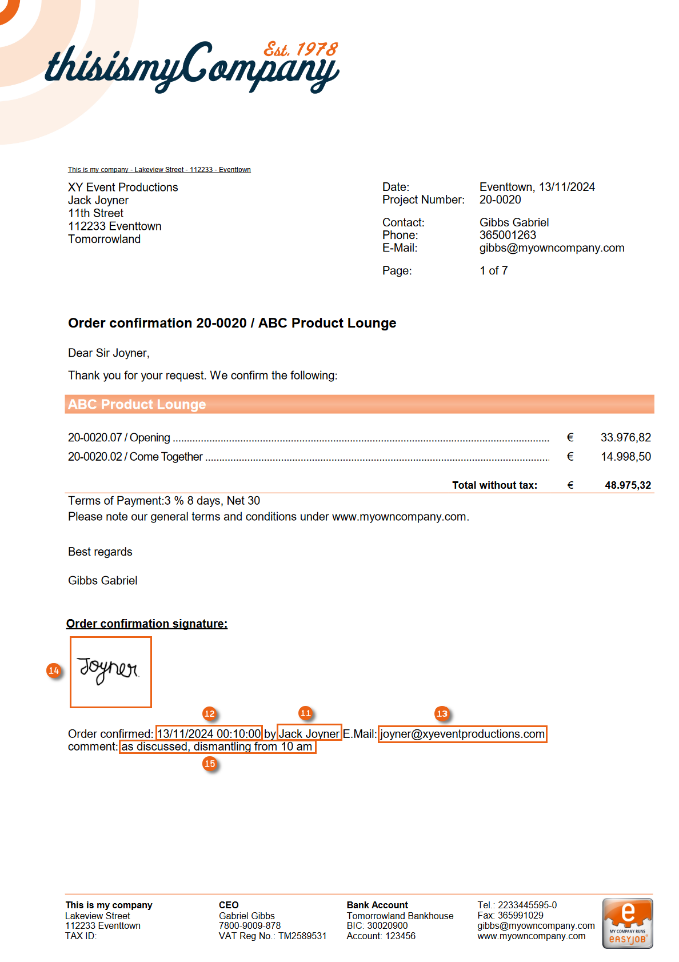
The data queries for creating a report for the signature function in the proposal are indicated below.
Hyperlink for the project proposal report
ExecuteScalar("EXEC GetSignConfirmationUrl '"+v.Project.Number+"'")
Hyperlink for the job proposal report
ExecuteScalar("EXEC GetSignConfirmationUrl '"+v.Job.Number+"'")
Image of the project digital signature
Drawing (ExecuteScalar("EXEC GetSignInfo '"+v.Project.Number+"', 1, 'ImagePath'") )
Image of the job digital signature
Drawing (ExecuteScalar("EXEC GetSignInfo '"+v.Job.Number+"', 1, 'ImagePath'") )
Name of the digital signature
ExecuteScalar("EXEC GetSignInfo '"+v.Projekt.Number+"', 1, 'Name'")
Date and time of the digital signature
ExecuteScalar("EXEC GetSignInfo '"+v.Projekt.Number+"', 1, 'TimeStamp'")
E-mail of the digital signature
ExecuteScalar("EXEC GetSignInfo '"+v.Projekt.Number+"', 1, 'EMail'")
Comments for the digital signature
ExecuteScalar("EXEC GetSignInfo '"+v.Project.Number+"', 1, 'Comment'")
Navigator and easyjob Today view
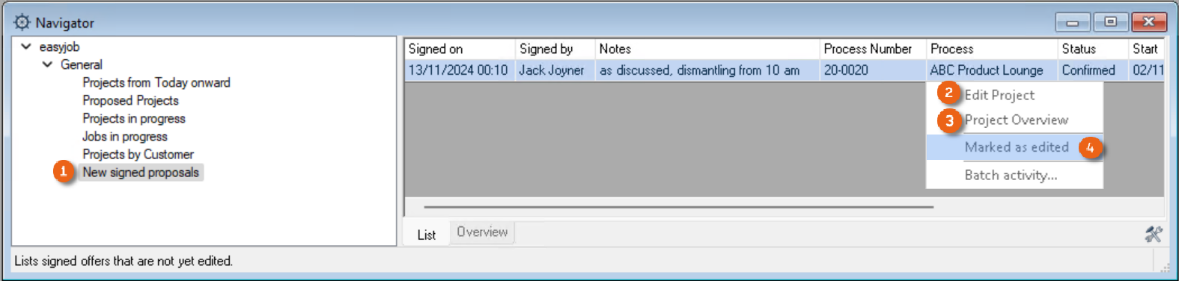
All newly signed Proposals are listed in the Navigator and in easyjob Today. From there, you can edit the project , open the project overview or mark the signed proposal as processed , after sending the proposal confirmation, for example.
Acknowledging deliveries with the signature function
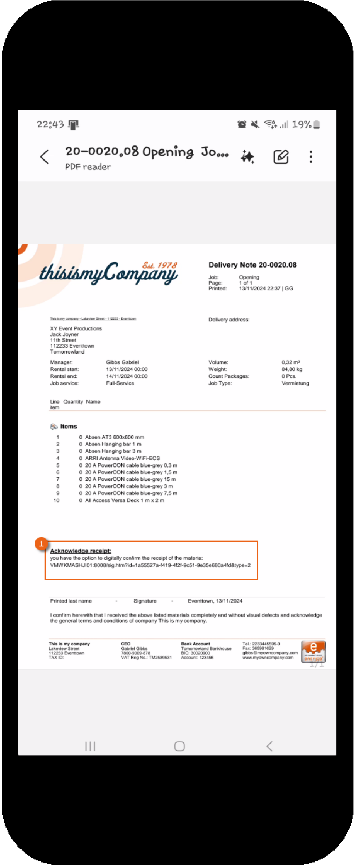
When issuing items and devices, there are different options for having their receipt acknowledged digitally by the recipient. Similarly to the proposal report, you can embed a link in your delivery note report (PDF) with which your customer can digitally confirm the delivery. The recipient can also sign digitally directly on your scanner or in the WebApp (both after check-out).
Acknowledging material with a digital delivery note
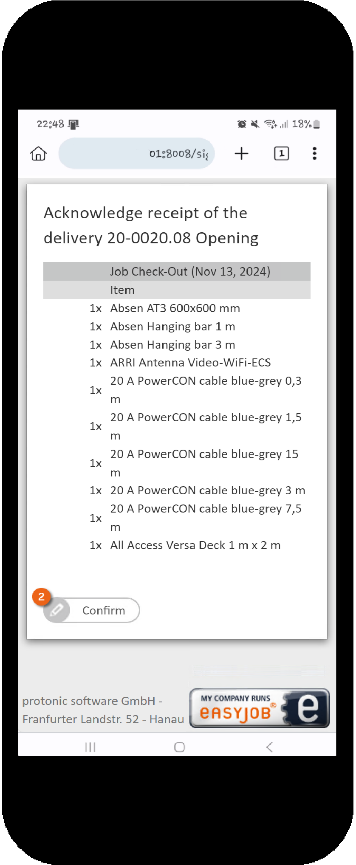
The recipient is directed via a Hyperlink to a website where they can acknowledge the receipt of the material . They can enter their Name and E-mail and Signature . Press delete to repeat the signature if necessary.
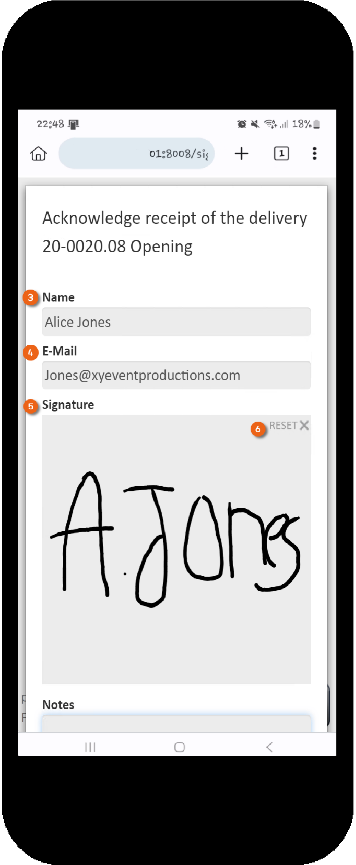
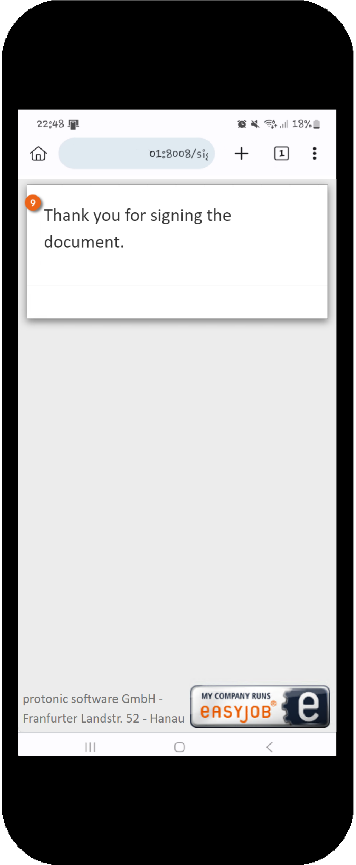
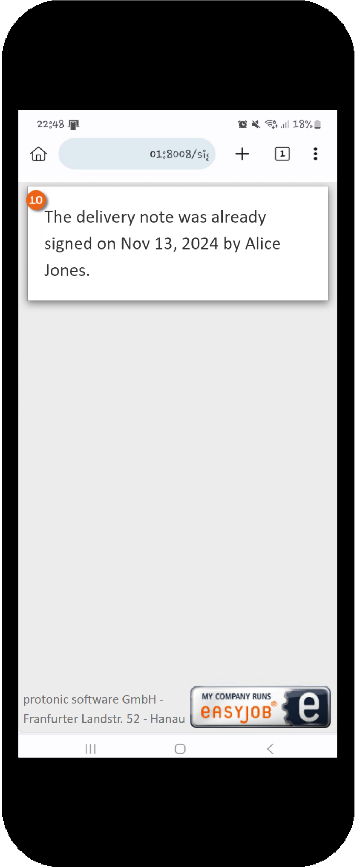
A comments field is also available. After confirming the entries, a message appears that the signature is complete. Each link can be signed only once. If it is activated again a corresponding message is displayed .
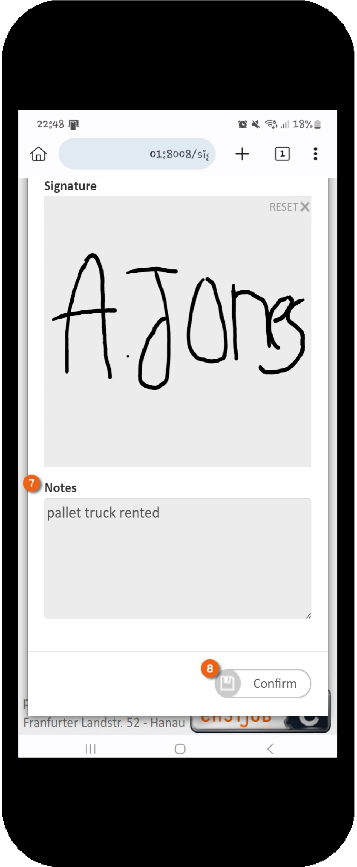
You can embed digital inputs such as Name , Date , E-mail , image of the signature and the comments in your reports, for the delivery note with signature for example.
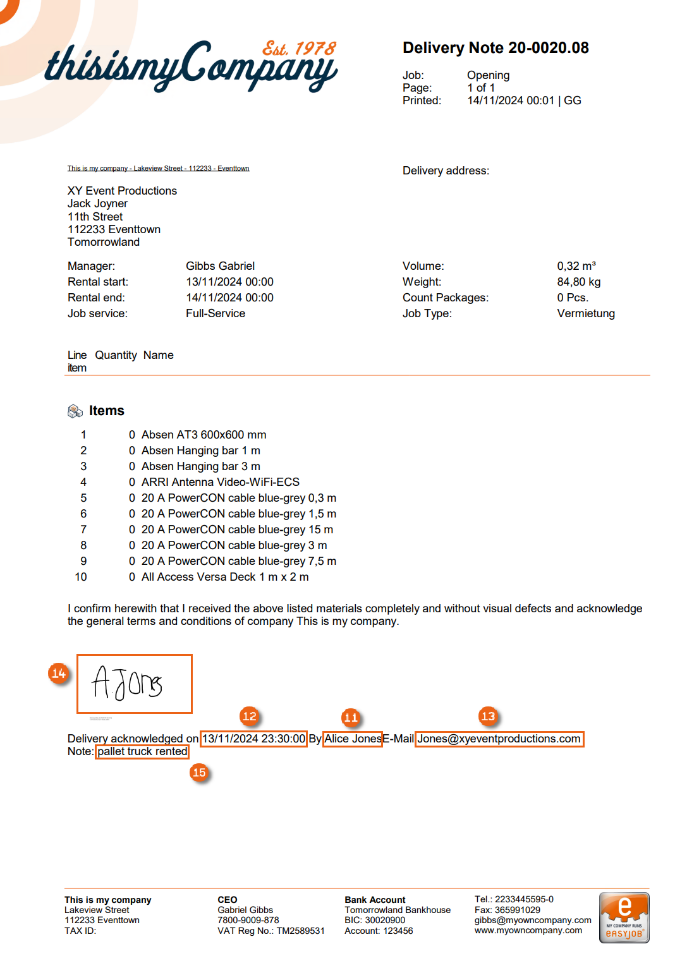
The data queries required for creating a report for the signature function in the delivery note are listed below.
Hyperlink for the job delivery note report
ExecuteScalar("EXEC GetSignDeliveryNoteUrl '"+v.Job.Number+"'")
Image of the job delivery note digital signature
Drawing (ExecuteScalar("EXEC GetSignInfo '"+v.Job.Number+"', 2, 'ImagePath'") )
Name of the digital signature
ExecuteScalar("EXEC GetSignInfo '"+v.Project.Number+"', 2, 'Name'")
Date and time of the digital signature
ExecuteScalar("EXEC GetSignInfo '"+v.Project.Number+"', 2, 'TimeStamp'")
E-mail of the digital signature
ExecuteScalar("EXEC GetSignInfo '"+v.Project.Number+"', 2, 'EMail'")
Comments for the digital signature
ExecuteScalar("EXEC GetSignInfo '"+v.Project.Number+"', 2, 'Comment'")
Acknowledging material on the scanner
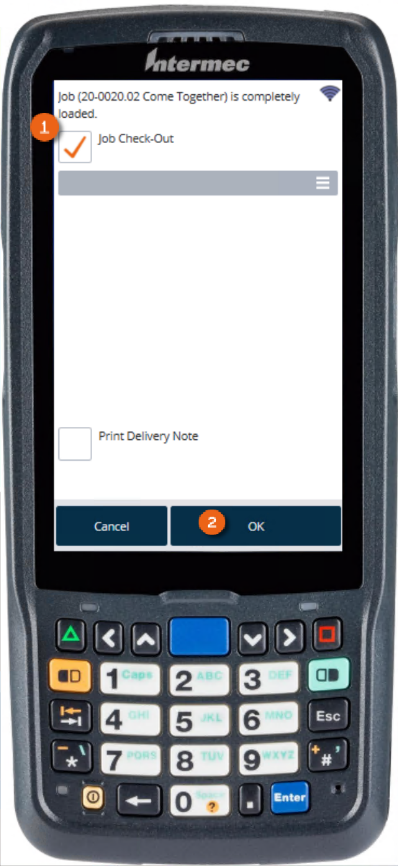
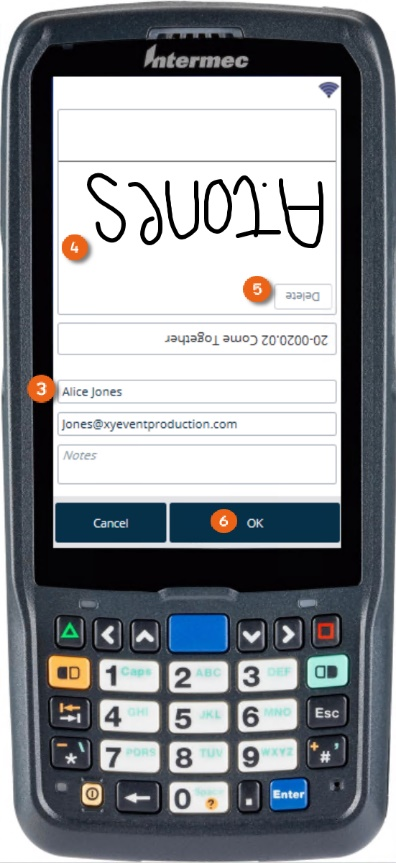
If you check out your material with the scanner, you can set it such that a signature is required on the scanner directly after check-out in order to acknowledge the goods.
Activating signature at check-out in the program settings
1. easyjob Menu Tools Settings
2. Mobile Scanner
3. Select the desired device
4. Settings
5. Check the box 'Signature at check-out'
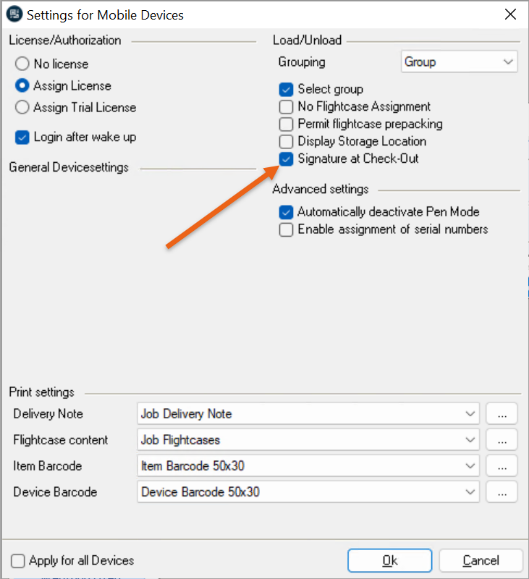
6. Ok
After the check-out with the scanner and the confirmation you can enter the name of the person that received the material and hand over the scanner for their signature. With the layout that turns 180 degrees, you can hold the scanner comfortably in your hand and do not have to turn it to receive the signature . Press delete to repeat the signature if necessary.
 …
… 
The data queries required for creating a report for acknowledgement after check-out using the scanner are listed below.
Image of the digital signature for acknowledgement after check-out via scanner
Drawing (ExecuteScalar("EXEC GetSignInfo '"+v.Job.Number+"', 2, 'ImagePath'") )
Name of the digital signature for acknowledgement after check-out via scanner
ExecuteScalar("EXEC GetSignInfo '"+v.Project.Number+"', 2, 'Name'")
Date and time of the digital signature for acknowledgement after check-out via scanner
ExecuteScalar("EXEC GetSignInfo '"+v.Project.Number+"', 2, 'TimeStamp'")
Acknowledging material in the WebApp
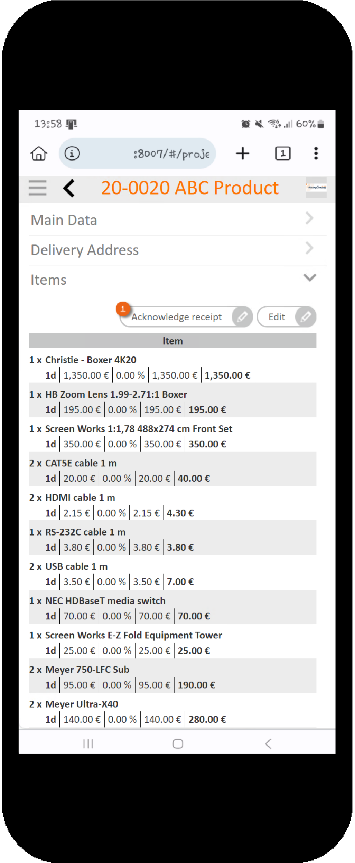
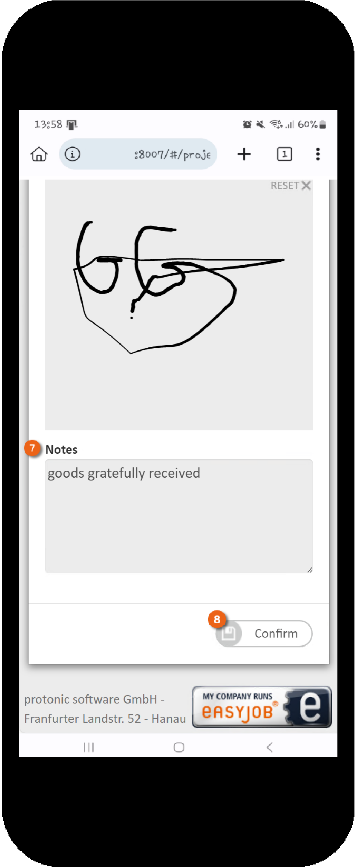
With the WebApp, you can have your customer acknowledge the receipt of material directly on site. After the material is checked out, the Acknowledge receipt button appears in the WebApp. Then a window opens in which the customer can acknowledge receipt . The name , e-mail and the signature can be entered. Press delete to repeat the signature if necessary.
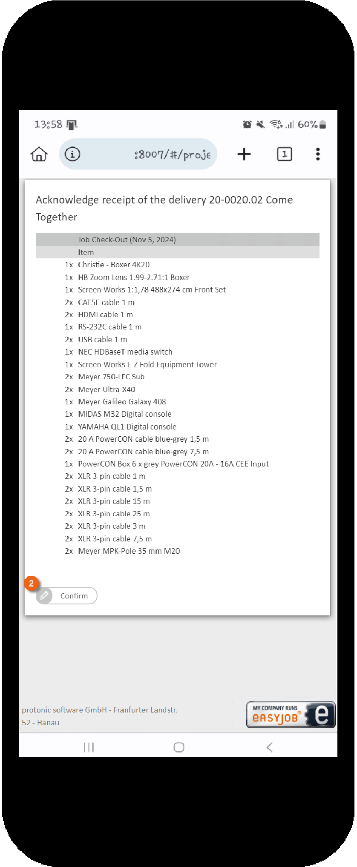
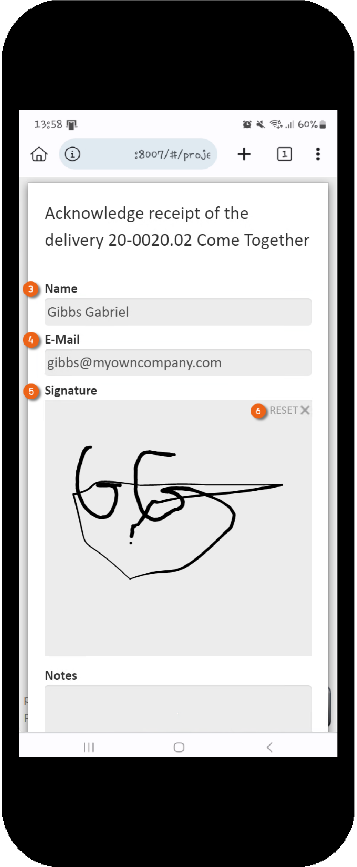
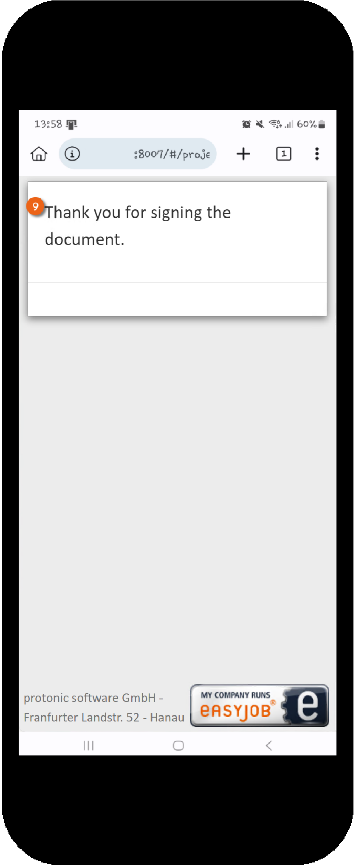
A comments field is also available. After confirming the entries, a message appears that the signature is complete.
The data queries required for creating a report for acknowledgement in the WebApp are listed below.
Image of the digital signature for acknowledgement in the WebApp
Drawing (ExecuteScalar("EXEC GetSignInfo '"+v.Job.Number+"', 2, 'ImagePath'") )
Name of the digital signature for acknowledgement in the WebApp
ExecuteScalar("EXEC GetSignInfo '"+v.Project.Number+"', 2, 'Name'")
Date and time of the digital signature for acknowledgement in the WebApp
ExecuteScalar("EXEC GetSignInfo '"+v.Project.Number+"', 2, 'TimeStamp'")
E-mail of the digital signature for acknowledgement in the WebApp
ExecuteScalar("EXEC GetSignInfo '"+v.Project.Number+"', 2, 'EMail'")
Comments for the digital signature for acknowledgement in the WebApp
ExecuteScalar("EXEC GetSignInfo '"+v.Project.Number+"', 2, 'Comment'")