easyjob International Pack
Documentation
International Pack
With the easyjob International Pack Basic (IP-B) you can localize Master Data and Reports (e.g. Proposals) in a customer and project based manner in 5 additional languages. You can easily calculate your projects in foreign currencies.
With International Pack Advanced (IP-A) you can go one step further. You also have the opportunity to store all your prices in different base currencies and calculate your projects accordingly.
Explanation of various terms
In order to optimally work with the Basic and Advanced easyjob International Pack, you will find the various terms defined below with application examples.
Definition of the User Language
In the User Settings, you can set your User Language. This defines if you want your easyjob display in English or German. As soon as you carry out an English installation of easyjob 6, you can change the user language. Terms such as Project Status, Job Status etc. will be filled into your Reports (e.g. Proposal) with the (global) basic language and on the easyjob user interface based on the user language.
A use case is, for example, a multi-warehouse environment in which German users want to have their easyjob user interface in German and users outside of Germany prefer to have it in English. See chapter User Settings.
Definition of the Output Language
The Output Language is understood as everything that you can enter and create in easyjob and is suitable as output for customers. You can enter the master data (e.g. Items, Sub Category, Salutation, etc.) in five additional languages. Based on the language you have assigned to the customer in the address, the standard fields in a report (e.g. Proposal) will be filled in using the respective language. The master data fields on the easyjob user interface will be filled in with the output language set by the user.
A use case is, for example, a Swiss company that would like to prepare Proposals in German, French and/or Italian.
Definition of project price calculation in a foreign currency
You can offer and invoice your projects in a foreign currency. The prices are calculated based on the base currency that was set.
A use case is a company from England that uses the British pound as the base currency but would like to offer a project in Euros.
Definition of different base currencies
You are able to create your master data prices (Items, Resources, etc.) in different base currencies. This function was created for multi-warehouses in different countries with different base currencies.
A use case is, for example, a company that has sites in Switzerland and USA and always makes calculations based on the local currency.
International Pack overview
| easyjob 6 Standard | easyjob Basic International Pack | easyjob Advanced International Pack** | |
|---|---|---|---|
| User languages (de/en) | X* | X* | X* |
| Output language (in 5 languages) | X | X | |
| Calculation in foreign currency | X | X | |
| Different base currencies | X |
*with the easyjob 6 EN installation
** only available for XL, licensing per site
Installation and activation
Go to the easyjob program settings to activate the Basic and Advanced easyjob International Pack modules. A separate installation is not required.
Activating the Basic International Pack module
1. easyjob Menu Tools Settings
2. Program Modules tab
3. Select Languages and, if required, Multi Currency
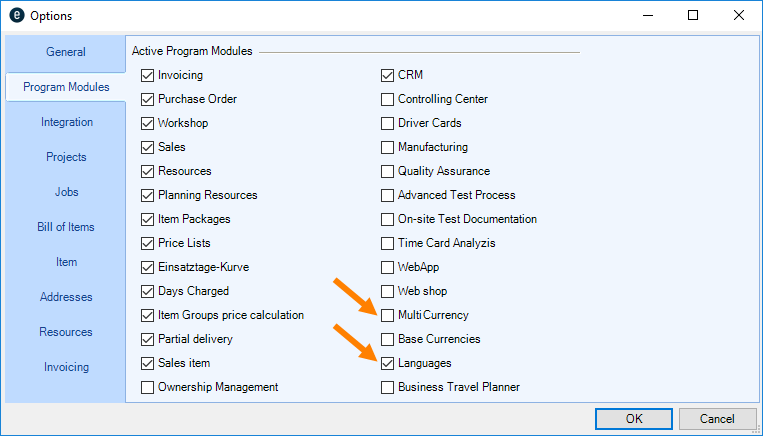
4. Ok
easyjob must be restarted to activate the settings.
Activating the Advanced International Pack module
1. easyjob Menu Tools Options
2. Program Modules tab
3. Select, as required Languages, Multi Currency and/or Base Currencies
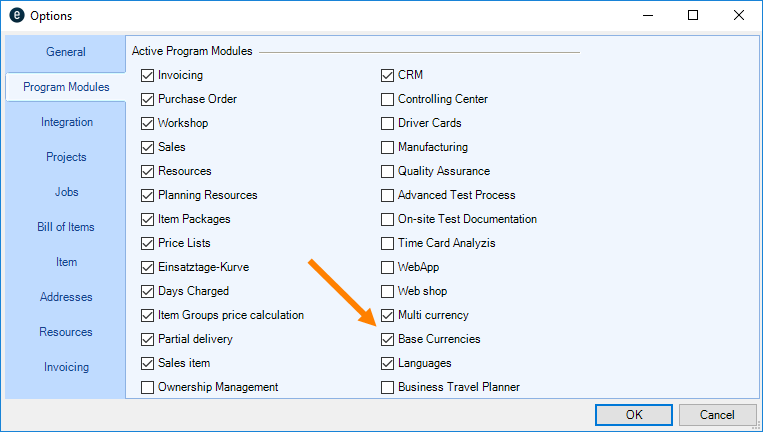
4. Ok
easyjob must be restarted to activate the settings.
Configuration and Settings
No content for this section.
Defining the output languages
1. easyjob Menu Tools Settings
2. Languages tab
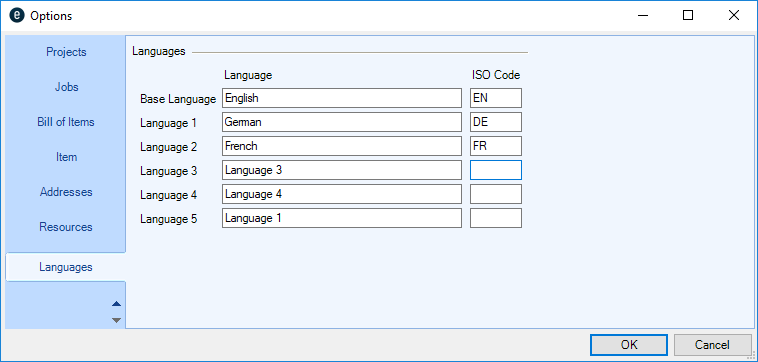
3. Create the Base Language and, if required, up to five additional languages
4. Ok
easyjob must be restarted to activate the settings.
Automatically calling up the real exchange rate
When installing the easyjob International Pack module, you can use the Server Manager to set up the automatic exchange rate query for foreign currencies via a WebService.
User Settings
Setting up the User Language
1. easyjob Menu Tools Manage User
2. Select a User
3. Edit
4. User tab
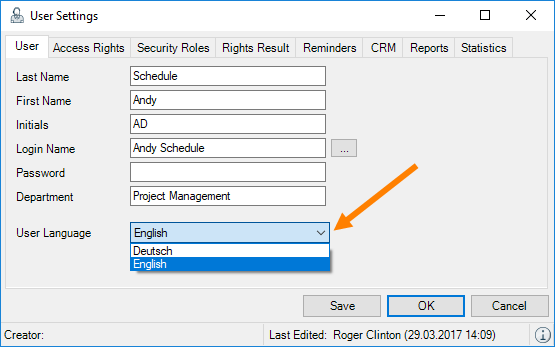
5. Select the desired User Language
6. Save and Ok
Setting the Output Language
1. easyjob Menu Tools Manage User
2. Select a User
3. Edit
4. User tab
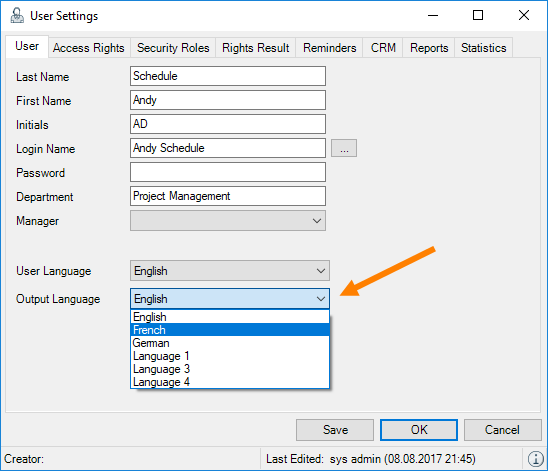
5. Select the desired Output Language
6. Save and Ok
This setting is only possible if you have activated Languages in the International Pack module.
Output Language
You are able to store everything that you enter and create in easyjob in five additional languages.
Additional output languages for Master Data
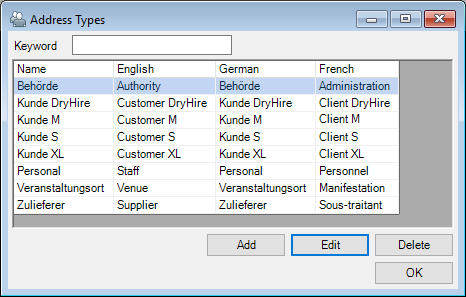
You can create almost all Master Data in multiple languages. To do so, select a function, such as Item Name or Address Type and enter the designation in the desired language.
Creating an address type in multiple languages
1. easyjob Menu Master Data
2. Select Address Type, for example
3. Select the desired Line Item
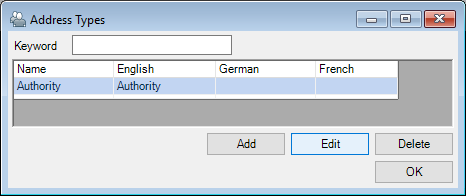
4. Edit
5. Check the box for the desired Settings
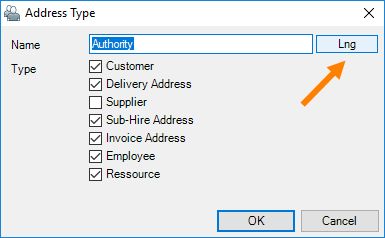
6. Lng
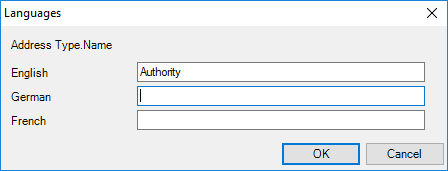
7. Enter the designation in your required languages
8. Ok
9. Ok
10. Start with 3 until you have entered all the designations
11. Ok
You can do the same for all Master Data to expand additional languages. If you have already created a base language, we recommended completing the missing languages using the List Editor. See Language list editor.
If you have selected French as the output language in the user settings, for example, the Address Type will be displayed in French according to your inputs. See also User Settings.
Address Type in another language in the Address Master Data
1. easyjob Menu Master Data
2. Select Addresses
3. Address Type dropdown
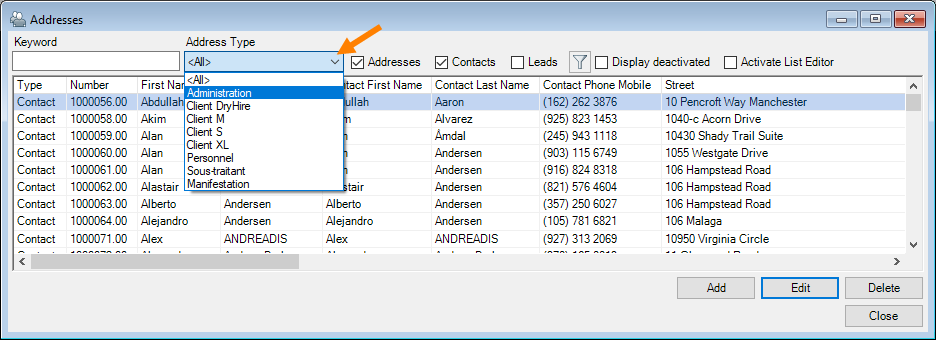
4. The Address Types are displayed in the output language
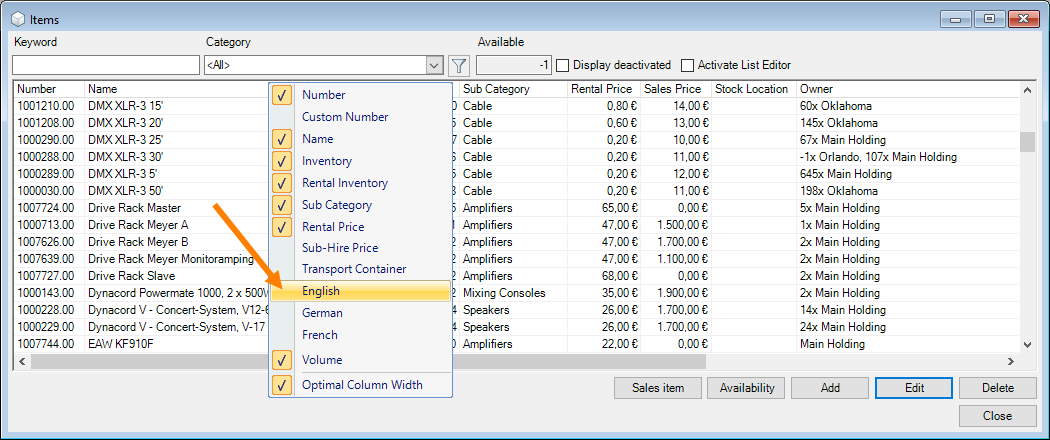
For some designations, such as Item names, you can display or hide the column for the language using the column heading context menu.
Language list editor
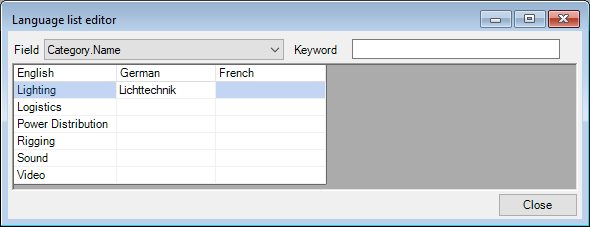
With the language list editor for the output language, you can access all terms of your master data as an overview and create them in multiple languages.
Editing the output language via the List Editor
1. easyjob Menu Master Data
2. Select the Language list editor
3. Select the field you want to edit, e.g Category.Name
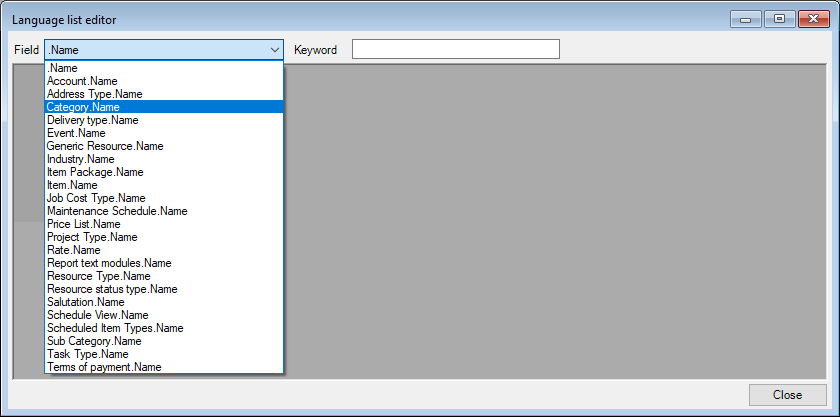
4. Enter the terms for the output language directly in the fields
5. Close
Report text modules
The terms that you have created in multiple languages in the Master Data can be used when printing or creating reports (e.g. proposals, delivery notes, packing lists, etc.). Therefore reports do not need to be created in every language. Before printing, you can select the output language in different positions.
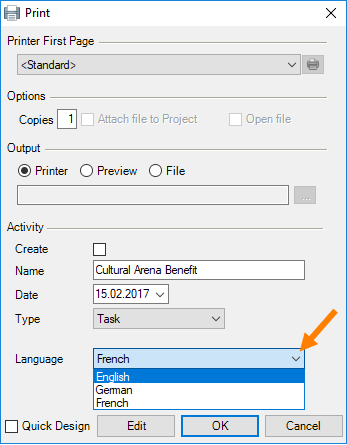
Output language in the print menu
You can change the output language when printing any report.
1. easyjob Menu Reports
2. Select the desired Report (e.g. Proposal)
3. Select a job
4. Select the required output language
5. Ok
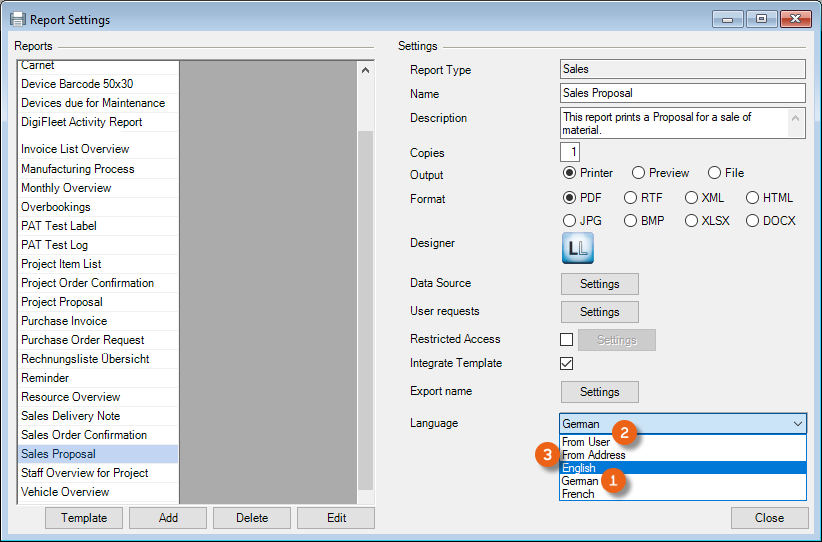
The output language in the print menu can also be preset. You can select one of your languages , the output language of the user or the output language of the selected address (e.g.e customer) .
1. easyjob Menu Tools
2. Report Settings
3. Select a report
4. Select the required output language
5. Close
Project price calculation in a foreign currency
You can offer and invoice your projects in foreign currencies. To do so, first create the desired currencies in the master data.
Creating foreign currencies in the master data
In addition to the Symbol and the ISO Code you can define if this currency should be displayed as the output currency . Furthermore, you also have the option to deactivate this currency .
1. easyjob Menu Master Data Rates
2. Add
3. Make your entries
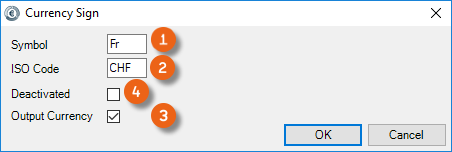
4. Ok
After you have created your currencies, enter the relative exchange rate to be used as the basis of calculation.
easyjob differentiates between the calculation exchange rate and the real exchange rate.
The calculation exchange rate valid at this moment will be used for the project calculations. For the invoice, the prevailing real exchange rate is used automatically.
See also Automatically calling up the real exchange rate.
Entering the exchange rate:
1. easyjob Menu Master Data Exchange rates
2. Add
3. Make your entries for the calculation exchange rate and, if applicable, the real exchange rate.
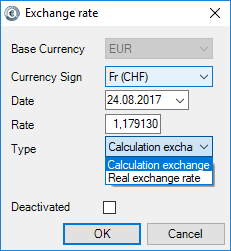
4. Ok
Project calculation
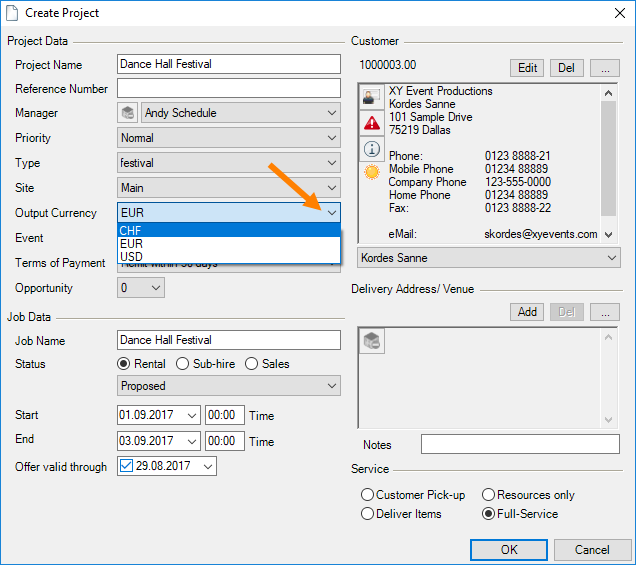
When you create a new project, select the desired foreign currency.
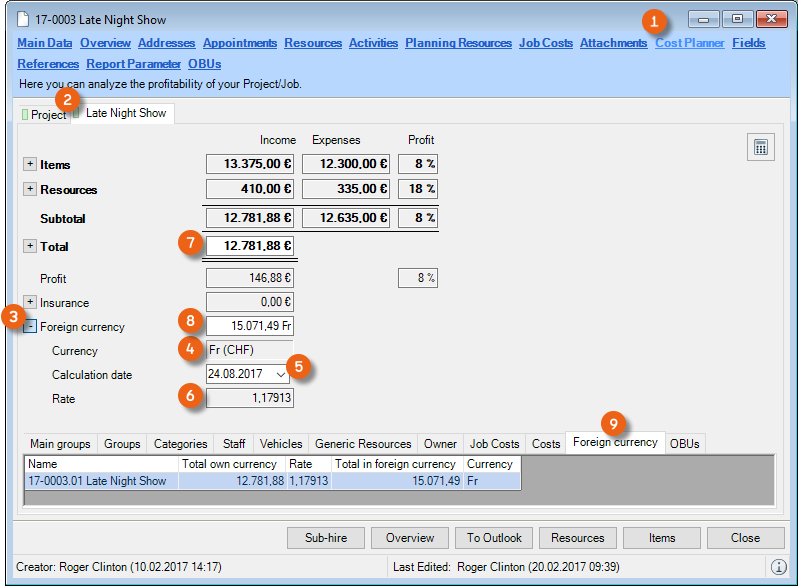
After you have scheduled your project as usual, you can view details about the foreign currency in the Cost Planner of a selected Job . The preset Foreign Currency will be displayed. The calculation exchange rate stored for the selected date is used for calculating the Total (Total in the base currency * calculation exchange rate ). The totals for the individual Jobs are also displayed in an overview .
Invoicing in foreign currency
When creating an invoice, you can define the currency you want to use for invoicing.
1. easyjob Menu Invoicing
2. Create Invoice
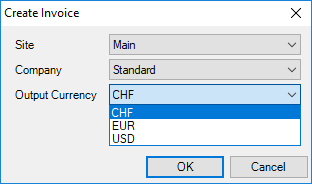
3. Select the desired currency
4. Ok
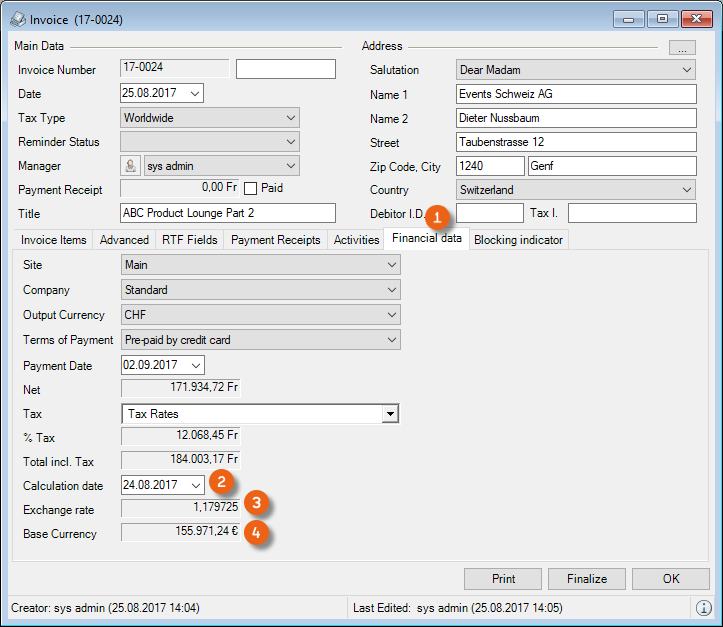
Create your Invoice as usual. The corresponding Line items are created in the selected currency. You can find details about the conversion rate on the Financial data tab. There you can see the calculation date used for the exchange rate . The real exchange rate is always used for the calculation. The currency is displayed in your base currency for comparison purposes .
Different base currencies
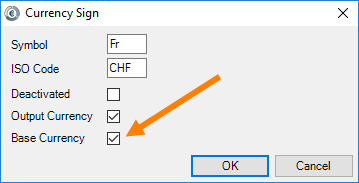
If your company has sites in various countries with different warehouses, you can enter your master data prices in the base currency of the respective country. To do so, first create the desired currencies. See Creating foreign currencies in the master data. Check the box for Base Currency if, for example in Switzerland, you want to make your calculation on the basis of the Swiss Franc.
When creating a new site, select the base currency applicable there at the same time.
1. easyjob Menu Master Data Site Management
2. Add
3. Make your entries
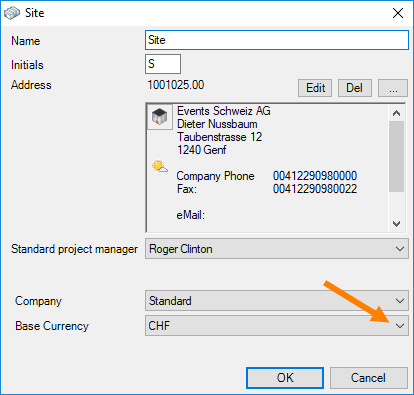
4. Ok
Base currency for item prices
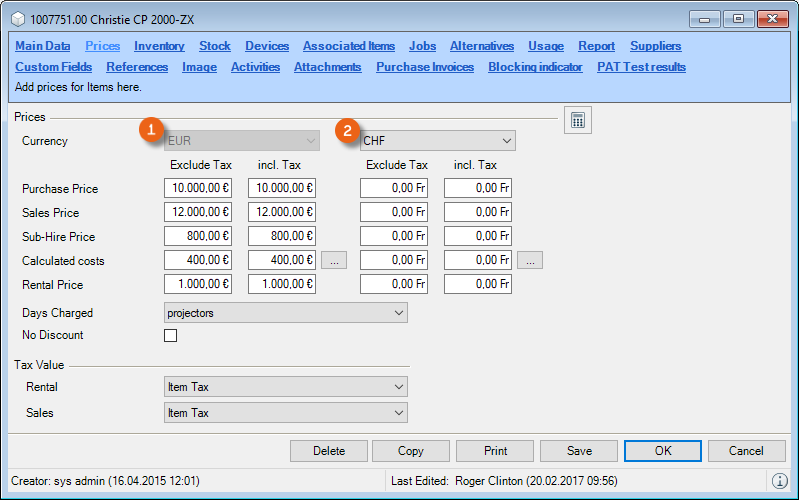
In the master data for your Items, you can create the prices in the base currency applicable for the respective site. The price information for the main site (e.g. in Euro) is displayed on the left side . On the right side , select the desired currency for your current site and enter the price.
1. easyjob Menu Master Data
2. Items
3. Edit
4. Price tab
5. Select the desired currency
6. Make your entries
7. Save and Ok
When creating Item Packages, you can also select the desired currency.
1. easyjob Menu Master Data
2. Item packages
3. Add
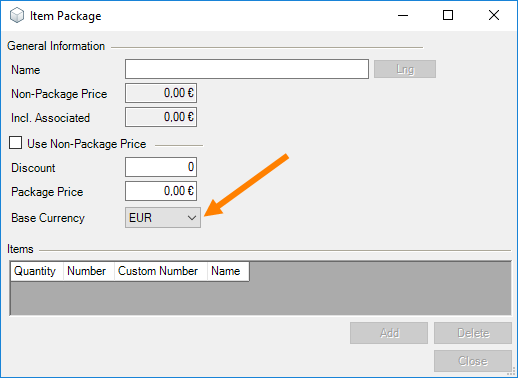
4. Select the desired currency
5. Make your entries
6. Close
Base currency for Resources
In the rate Master Sata, you can also create different prices. As soon as you have created a base currency, the staff rates are automatically duplicated and created in the corresponding currencies.
1. easyjob Menu Master Data
2. Rates
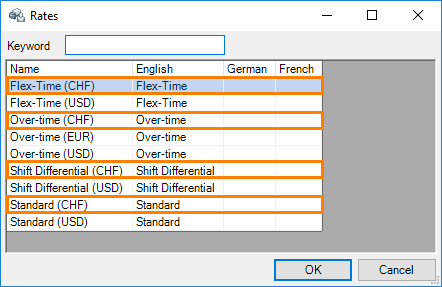
You can assign the suitable rate to the various resources in the respective currency according to these rates.
1. easyjob Menu Master Data
2. Resources
3. Select a resource
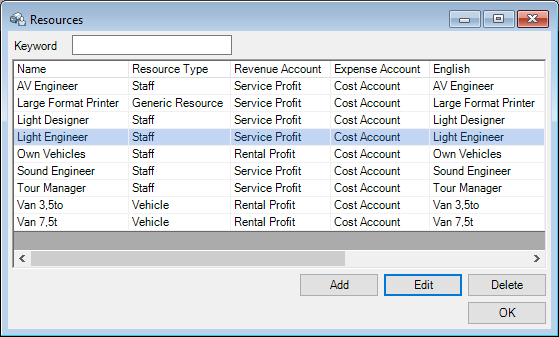
4. Edit
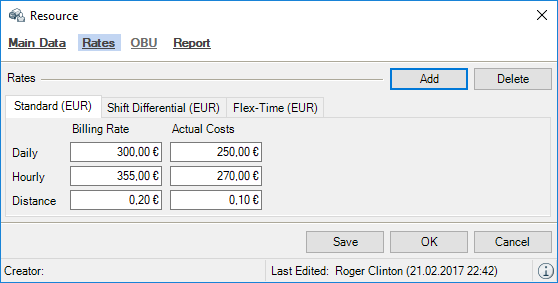
5. Rate tab Add
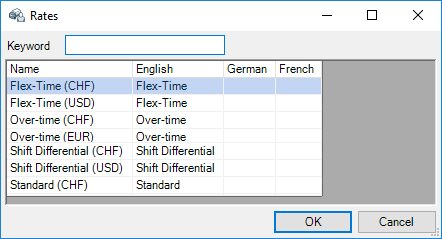
6. Select the desired rate Ok
7. Make your entries
8. Save and Ok
Controlling Center
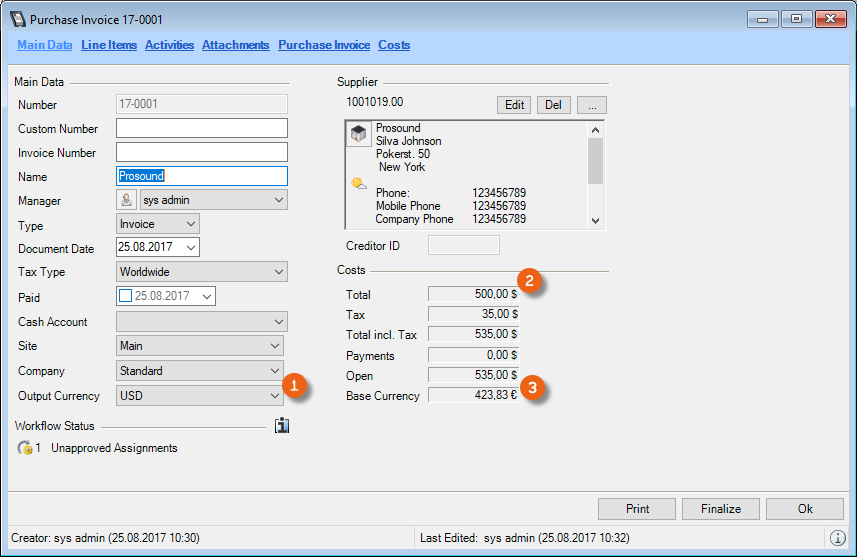
If you use the easyjob Controlling Center module, you can create Purchase Orders and Purchase Invoices also in the foreign currency . The costs are shown split up in the foreign currency , the total is shown additionally in the base currency
Business Information Center
In the easyjob Business Information Center module, you can group your individual analyses. You can display exchange losses, follow the progress of planning and real exchange rates, and much more.