easyjob Outside Broadcast Units
Documentation
Outside Broadcast Units
The easyjob Outside Broadcast Units module permits the inventory management of outside broadcast units. Each outside broadcast unit (usually comprised of a vehicle and a service vehicle) and is represented in easyjob as an independent warehouse. When a new job is created with an outside broadcast unit, the respective transport resource as well as the material assigned to the outside broadcast unit is automatically booked. Additional items from other warehouses as well as temporary items from other outside broadcast units can be added to the respective job. The items can be booked manually or using the barcode.
Installation and activation
Go to the easyjob program settings to activate the easyjob Outside Broadcast Units module: A separate installation is not required.
Activate the Outside Broadcast Units module
1. easyjob Menu Extras Options
2. Functions tab
3. Select Outside Broadcast Unit
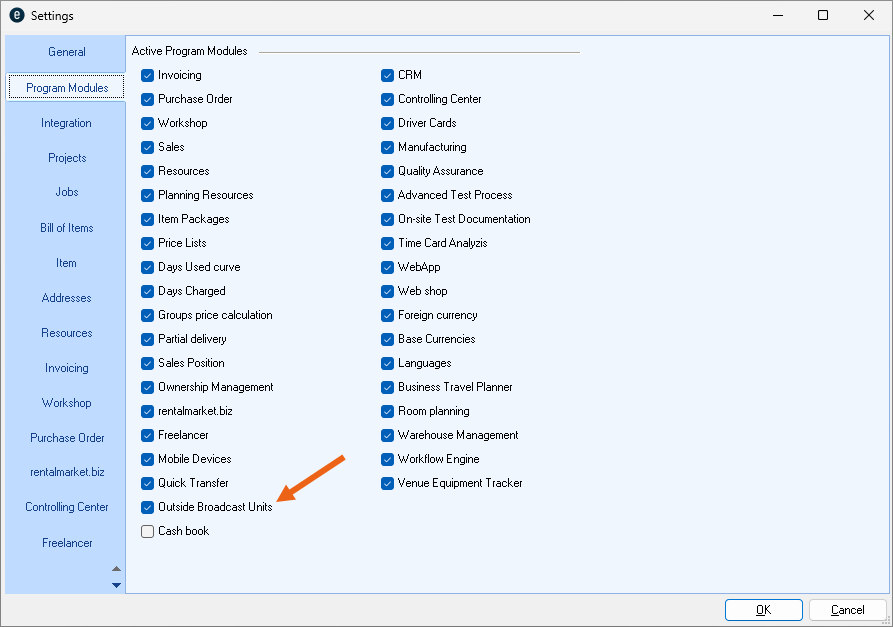
4. Ok
easyjob must be restarted to activate the settings.
User settings
There is no separate user rights setting for the Outside Broadcast Units module. Creating resources as OBU and item management requires the same rights as for Projects/Jobs – Resources, Master Data Item/Addresses, etc.
Assigning the user right:
1. easyjob Menu Extras User Rights Management
2. Select a User
3. Edit
4. Rights tab
5. Assign the desired rights
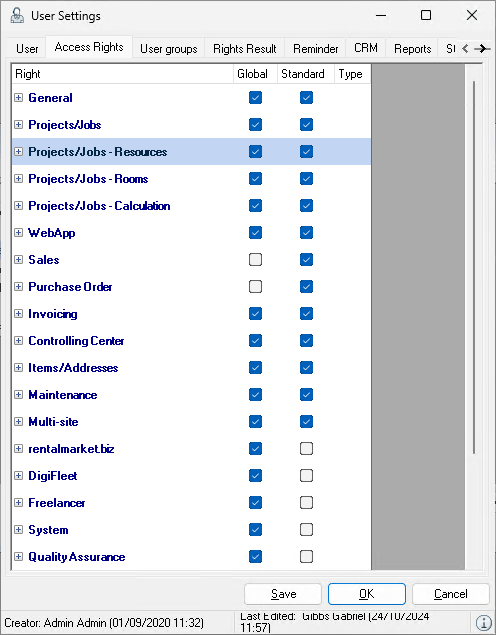
6. Save
7. Ok
Creating an OBU warehouse
To be able to work with the Outside Broadcast Unit (OBU) module, you must first create each outside broadcast unit (e.g. vehicle and service vehicle) as a separate site (warehouse) and then create an OBU resource with this warehouse.
Create a site (warehouse) for the outside broadcast unit
1. easyjob Menu Master Data Site Management
2. Add
3. Enter the Name, Initials and make the desired entries
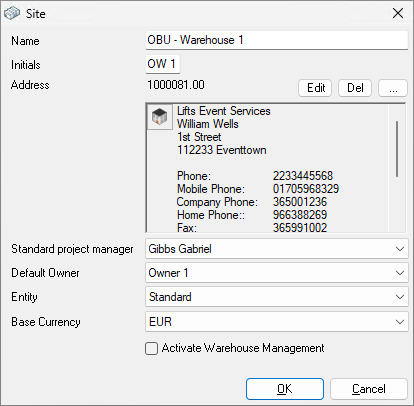
4. Ok
Creating an OBU resource
Create an outside broadcast unit as a resource (OBU)
1. easyjob Menu Master Data Resources
2. Add
3. Main data tab
4. Enter the name, and accounts and tax rate if necessary
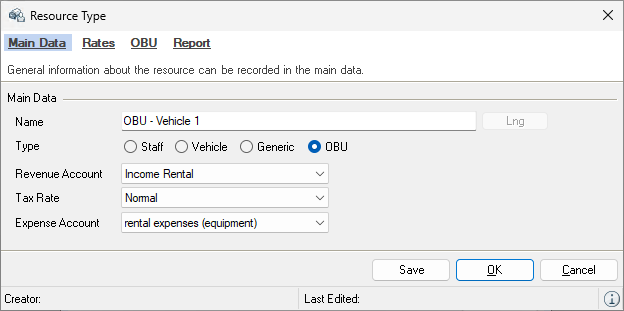
5. Select the resource type OBU
6. Rabe tab
7. Add the desired rate
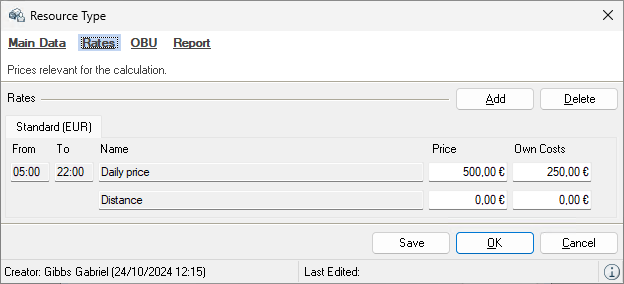
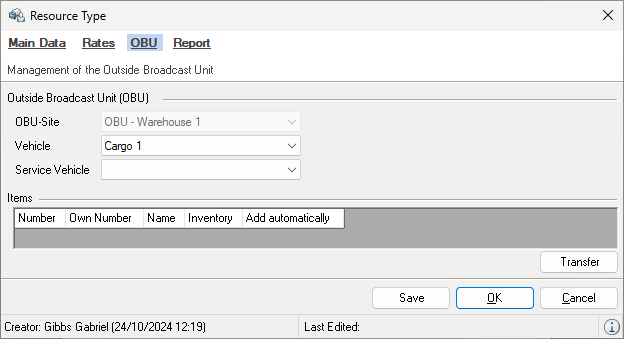
8. OBU tab
9. Select the OBU warehouse, and vehicle and service vehicle if necessary
10. Save
11. Ok
Every outside broadcast unit that is created as an OBU resource must have its own warehouse assigned to it. Every OBU warehouse can only be assigned to one OBU resource.
Managing the warehouse stock of the OBU resource
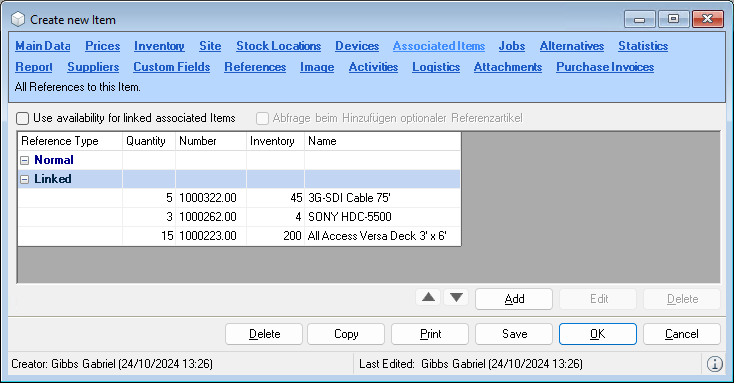
An OBU usuall consists of a vehicle (director suite, edit suite, etc.) with pre-installed items and a service vehicle with mobile items. For the pre-installed standard equipment we recommend creating an item (e.g. with the name pre-installed standard equipment U1) and to assign the items/devices that are pre-installed (or bolted) there as linked items.
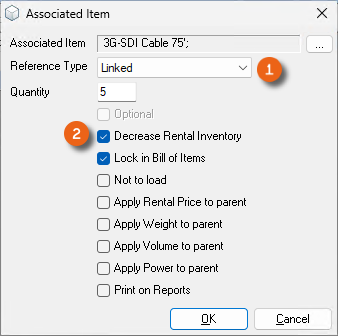
When creating the associated items, make sure to select the Linked and Reduce rental inventory properties
Create pre-installed standard equipment and its associated items
1. Easyjob Menu Master Data Items
2. Add
3. Enter a name (e.g. pre-installed standard equipment U1)
4. Select a subcatetory
5. Inventory 1
6. Save
7. Associated items tab
8. Add
9. Select the associated item
10. Reference type Linked
11. Reduce rental inventory
12. Ok
13. Repeat the procedure until you have created all associated items.
14. Save
After making this assignment, you can transfer the 'pre-installed standard equipment' item with the associated associated items and all other mobile items to the OBU.
Assigning items and devices to the OBU
The outside broadcast unit is equipped by transferring items from the previous warehouse to the warehouse for the OBU resource.
Assign an item or device to the OBU
1. easyjob Menu Master Data Resources
2. Select OBU resource
3. Edit
4. OBU tab
5. Transfer
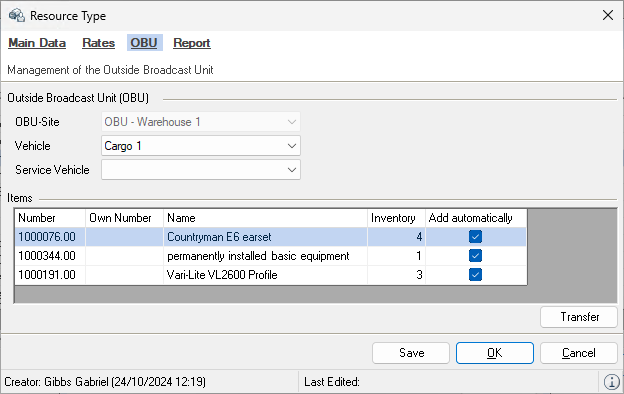
6. Select the required item
7. Ok
8. Adjust the settings for the inventory transfer if necessary
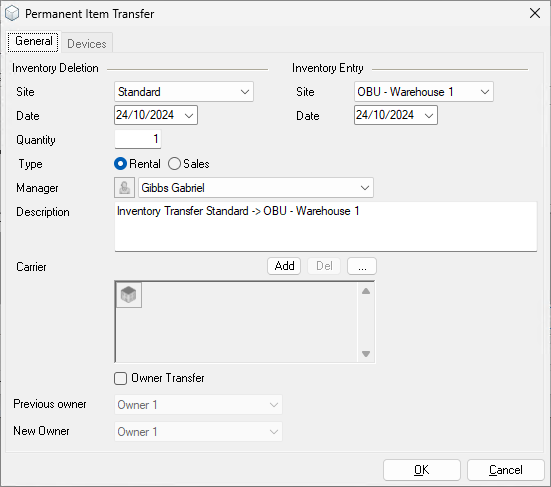
9. Assign devices if necessary
10. Ok
11. Save
On the OBU tab of the Resource you can see which items were assigned to the OBU warehouse . By checking the Add automatically box you define if the respective items of the OBU resource booking should be automatically added to the bill of materials.
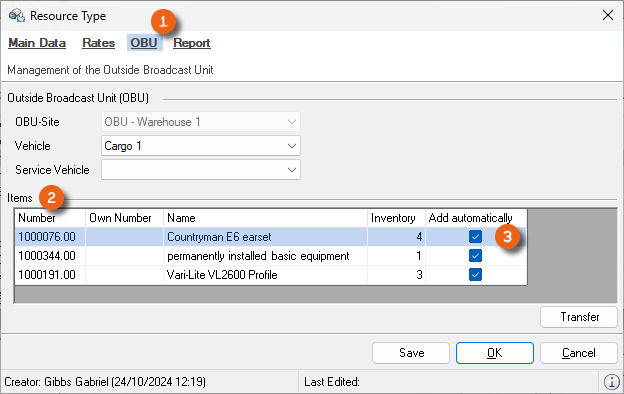
Removing items and devices from the OBU warehouse
If a device or item assigned to an OBU warehouse is exchanged or removed, this can also take place in the opposite direction (e.g. OBU warehouse 1 inventory deletion and Default inventory entry ) through an inventory transfer.
1. easyjob Menu Master Data Resources
2. Select OBU resource
3. Edit
4. OBU tab
5. Transfer
6. Select the required item
7. Ok
8. Adapt the settings to the inventory transfer
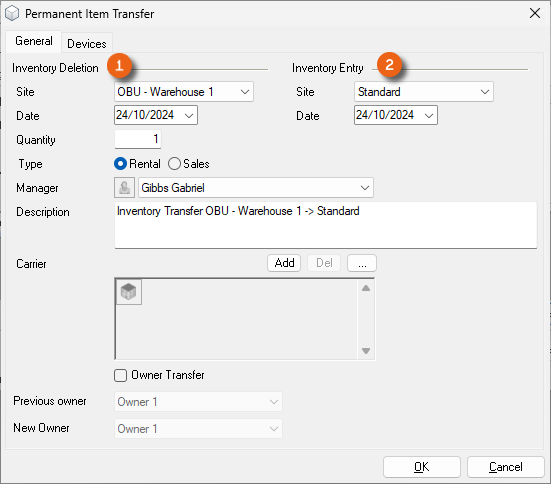
12. Devices tab
13. Assign
14. Select the desired devices
15. Ok
16. Save
OBU in the project
In the project, OBUS are booked and managed on a separate tab per job.
Booking an OBU in a job
Booking an OBU is comparable to a resource booking that is done, however, on a separate tab.

Book an OBU resource in a job
1. easyjob Menu Projects Edit projects
2. Select the Project
3. Edit
4. OBUs tab
5. Add
6. Select an OBU under resource type
7. Enter the parameter for a resource booking as usual
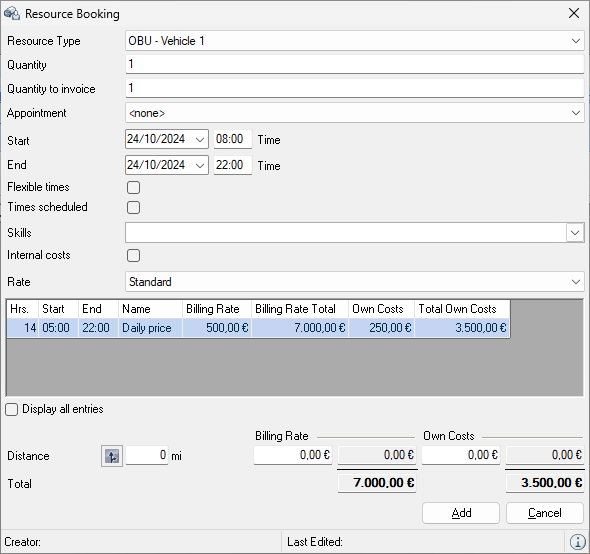
8. Ok
On the OBU tab, you can display and hide various information using the Column headings . Also the order of the column headings can be changed as required. OBUs can be Added , Edited and Eeleted here.
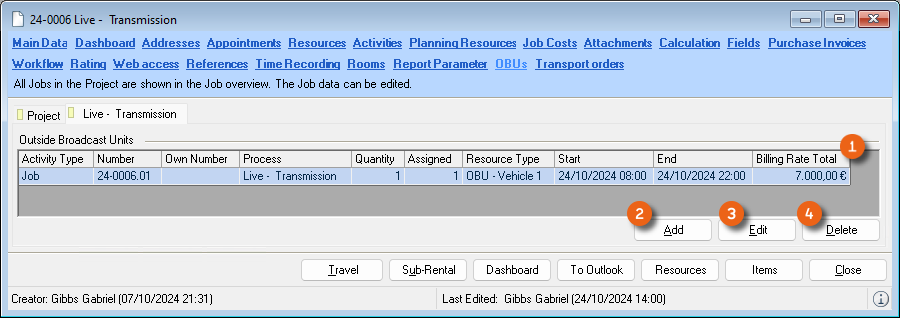
OBU in the bill of items
After you have added OBUs, they will appear in the bill of items. A Main group is created automatically with the name of the OBU (e.g. Outside Broadcast Unit 1 ) and the items of the OBU resource are booked in the standard equipment subgroup. The pre-installed item of the Standard equipment U1 contains the Assigned associated items that can be displayed using the Associated item view options . The mobile Items are then listed. With the Site filter you can select the main warehouse of the OBU warehouse for scheduling.
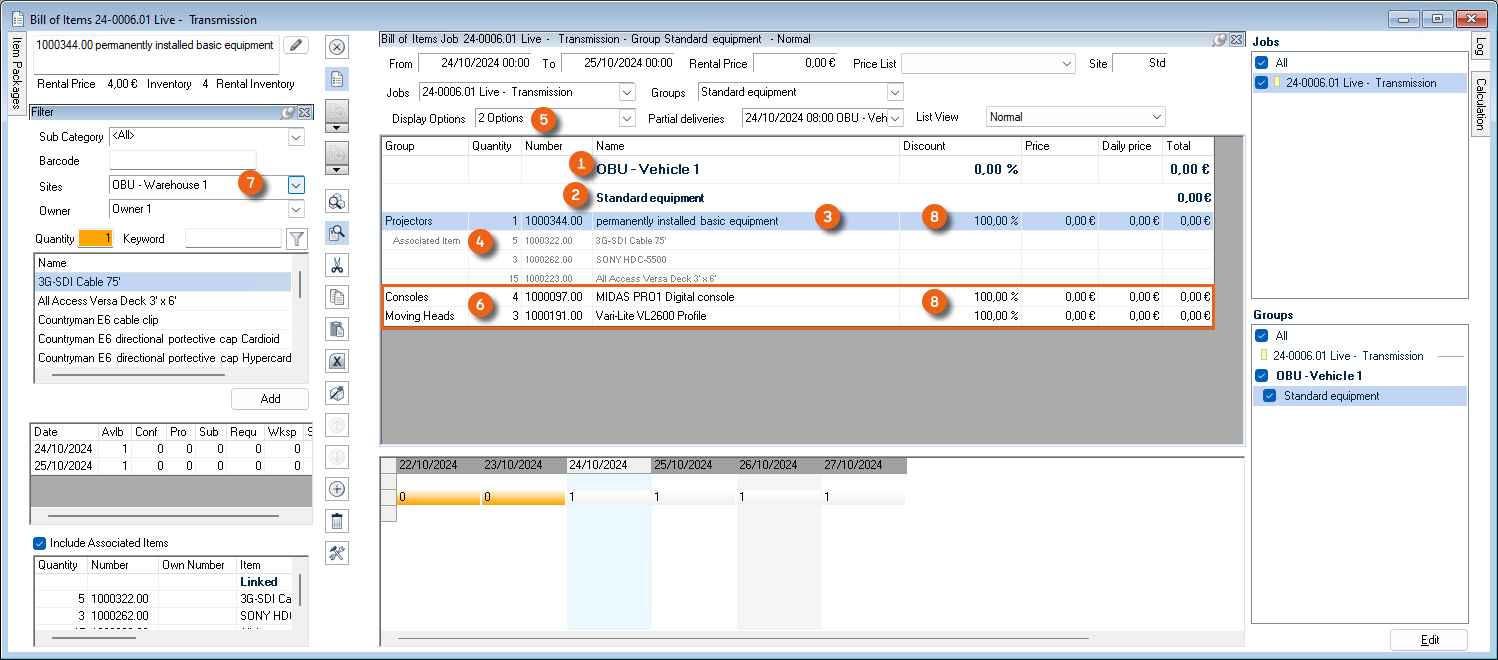
All items available in the OBU resource are automatically booked with a 100 % discount in the bill of items. The OBUs are listed separately in the cost planner. The price corresponds to the rate created in the OBU resource. You can define the Expenses in the rate. If the items booked in the OBU resource contain expenses in the item master data, they are included in the Cost Planner .
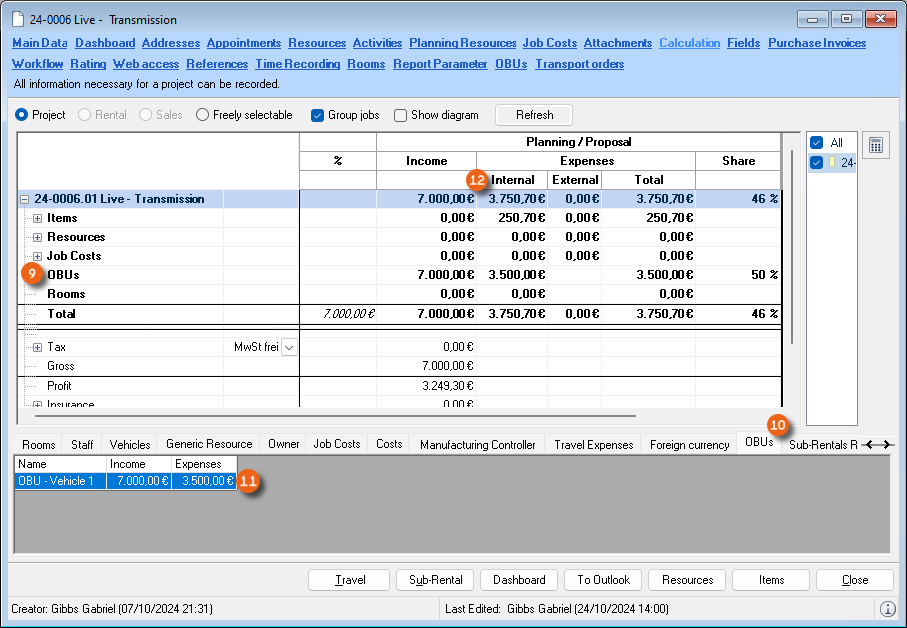
Using set-up material from another OBU
Items can also be booked from an additional OBU warehouse. For example the service vehicle of Outside Broadcast Unit 2 still has 2 cameras that are currently not needed there. A new group for this is added to the OBU group (see the example for Outside Broadcast Unit 1).
Add items from other OBUs to the current OBU
1. easyjob Menu Projects Edit projects
2. Select the Project
3. Edit
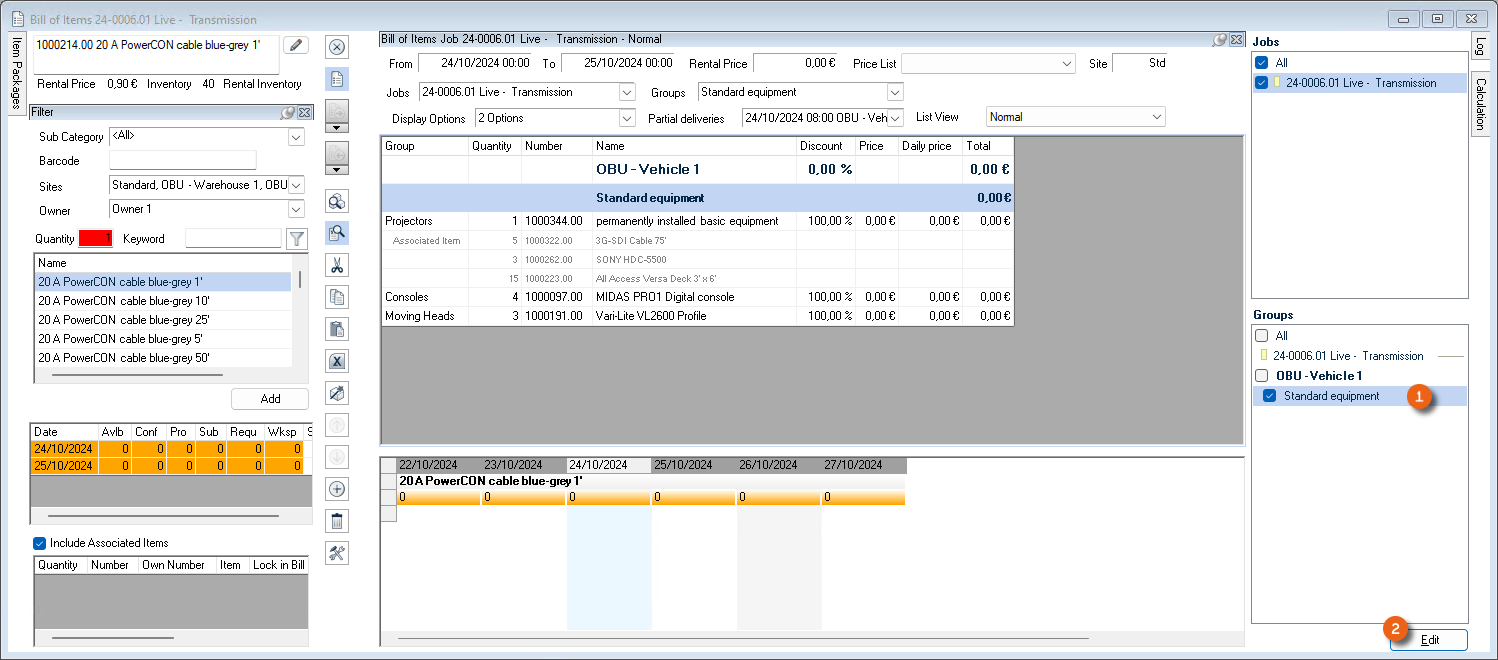
4. Items
5. Select the standard equipment for the Outside Broadcast Unit 1 Group
6. Edit
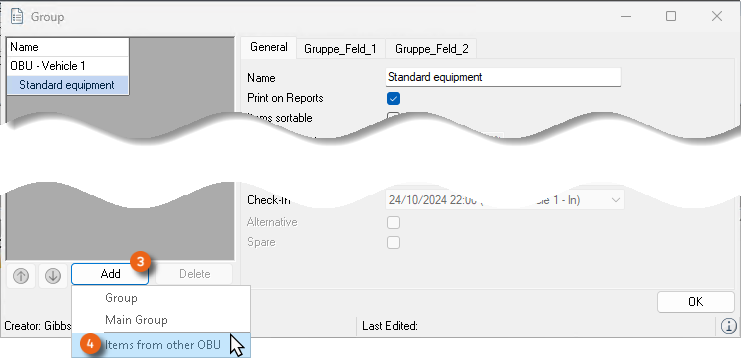
7. Add
8. Item from another OBU
9. Select the desired list OBU from Ok
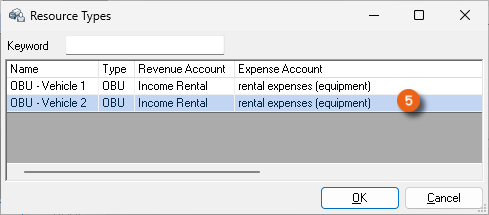
The group automatically receives the name of the OBU, in this example: Item from Outside Broadcast Unit 2
10. Close
11. Setting the filter OBU Lager 2 for sites
12. Select the desired quantity (in the example, 8) of items
13. Add
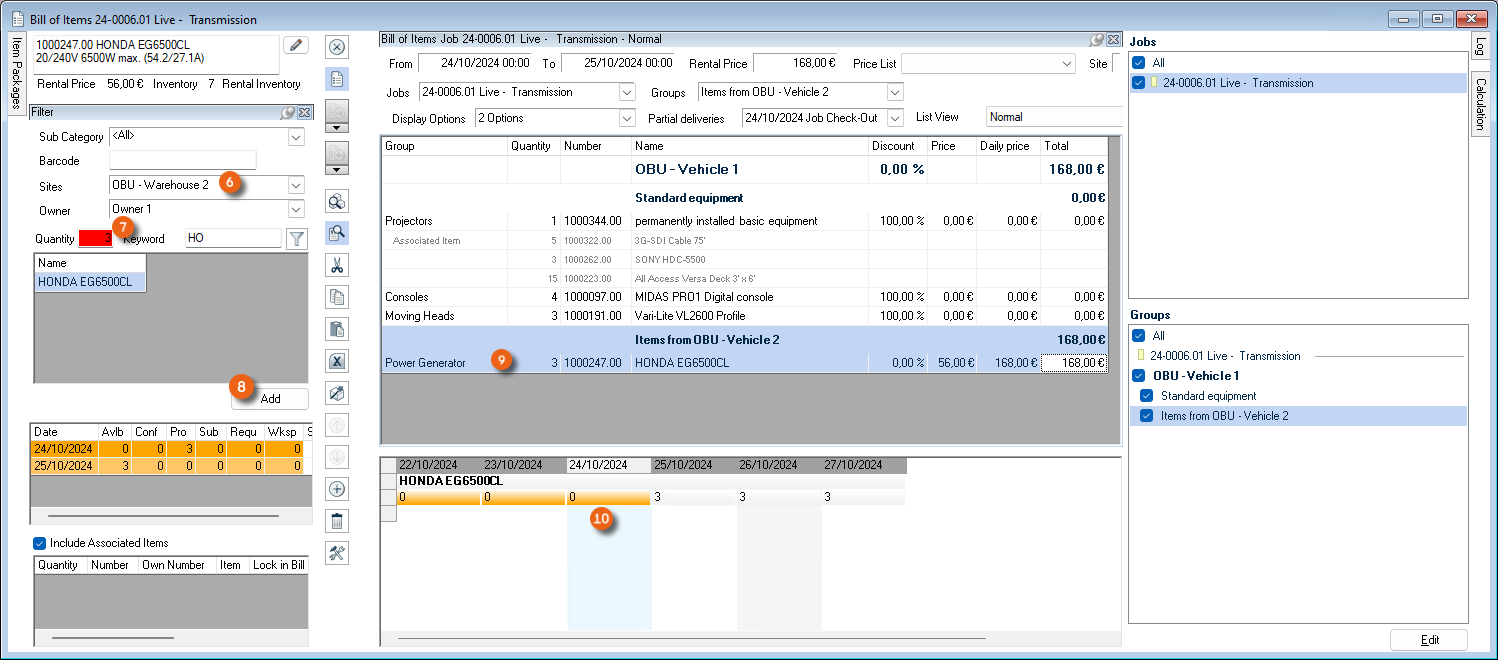
The available items are booked from the OBU wareshouse 2 to the Group and do not have an overbooking .
View of the booked OBUs
You can find an overview of all booked OBUs in the easyjob Views. There you can edit the Job or the OBU booking directly using the right mouse button.
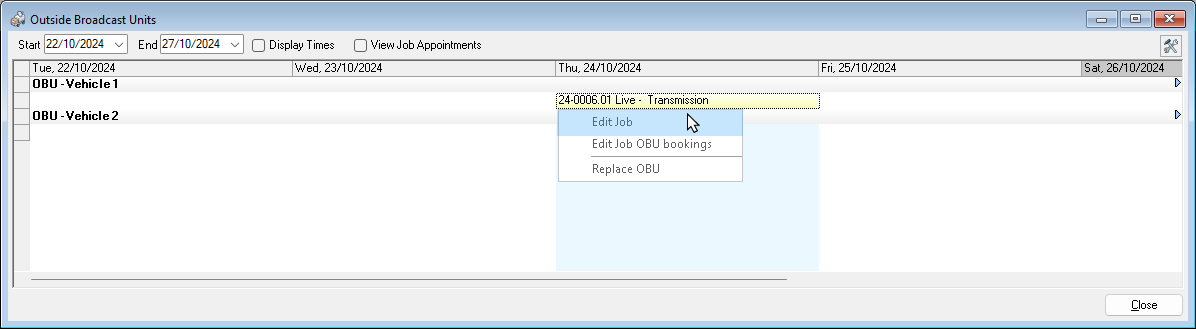
Open the OBU view
1. easyjob Menu
2. View
3. Outside Broadcast Untis
4. Use the Job or Job OBU context menu to edit bookings