easyjob Quality Assurance
Documentation
Quality Assurance
The easyjob Quality Assurance (QA) module makes it possible for you to take the qualities and skills of your internal and external employees into account during resource planning and to use them effectively. An event technician has, for example, certain skills in AV and in sound. With Quality Assurance, you can assess these skills and see the individual strengths of your personnel at a glance.
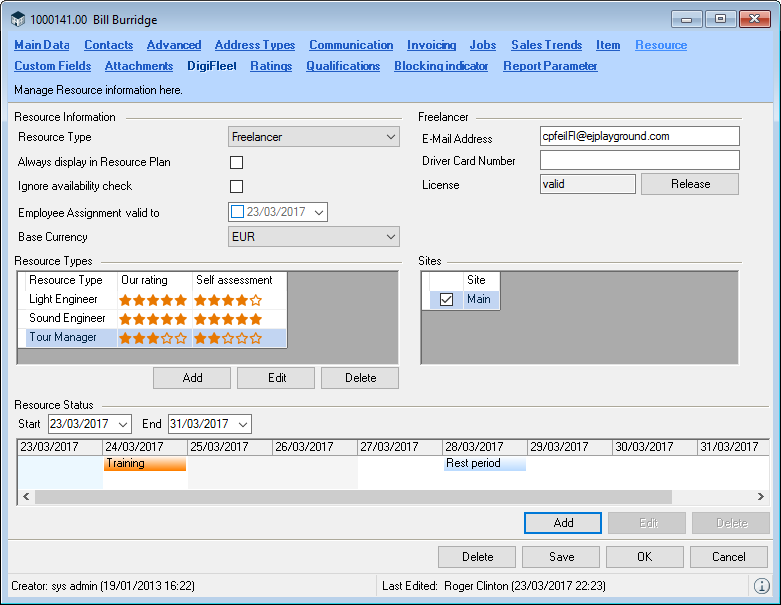
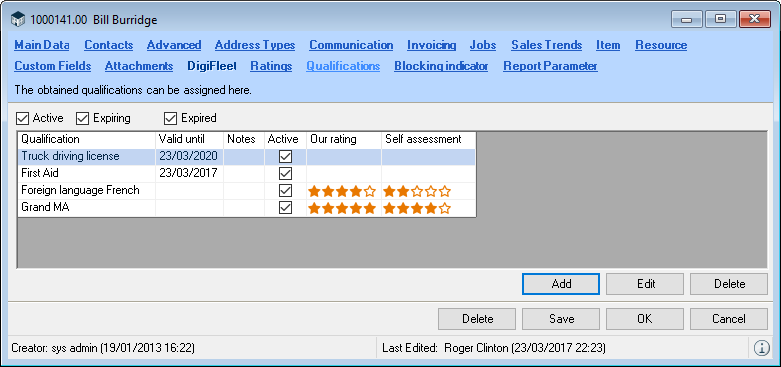
You can also register additional personnel skills (driver card, English knowledge, etc.) to plan in a more appropriate manner. For example, when you require employees who have been instructed or skilled in operating a personal lift or a complex light control panel. When assigning staff for a project, this ensures that staff with the required skills is booked for the equipment to be used.
You can assess the individual suppliers, internal and external Resources and schedulers within a project. It is also possible for your customer to assess the provided service on a website.
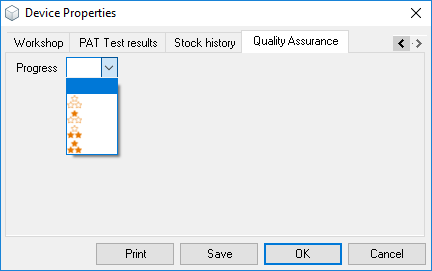
You can use a rating system to define the condition of each item and device.
Installation and activation
Go to the easyjob program settings to activate the easyjob Quality Assurance module. A separate installation is not required.
Activate the Quality Assurance module:
1. easyjob Menu Tools Options
2. Program Modules tab
3. Select Quality Assurance
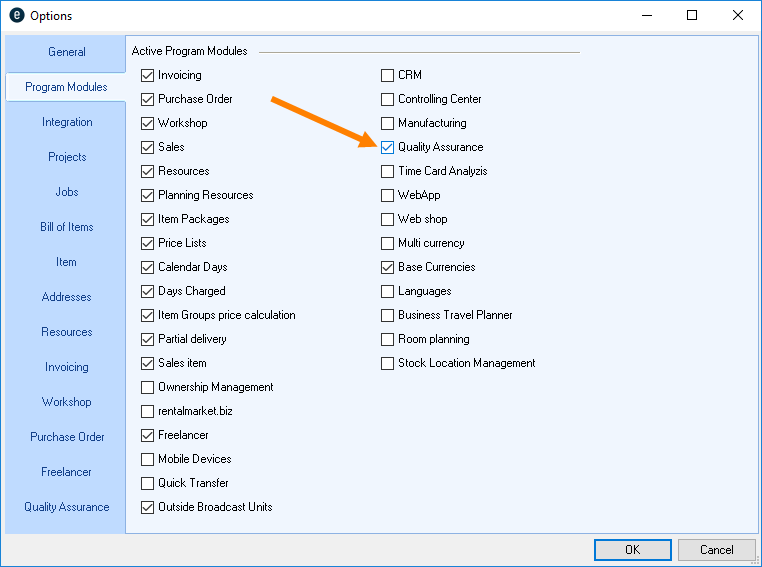
4. Ok
easyjob must be restarted to activate the settings.
Configuration and settings
No content for this section.
User settings
User rights for carrying out Quality Assurance, viewing or editing ratings are defined in the User Settings.
Assigning the Quality Assurance user right:
1. easyjob Menu Tools Manage Users
2. Select a User
3. Edit
4. Access Rights tab
5. General
6. Assign the desired rights
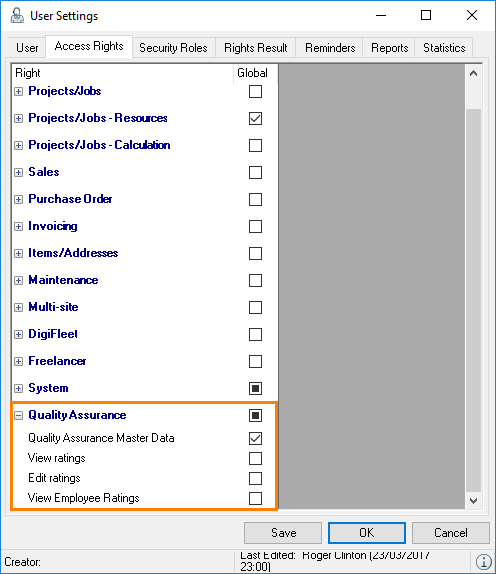
7. Save
8. Ok
Qualifying Resources
No content for this section.
Assessing the quality of the resource type
In the Address Master Data you can define the Resource Type (e.g. AV technician, light technician, etc.) for which the employee will be used in your projects. In order to differentiate the areas in which employees have their strengths, you can assess the quality with which employees are proficient with respect to the Resource Type. With Edit you can enter your own Rating and the Self assessment of the employee (e.g. determined using a staff questionnaire) with respect to the Resource Type.
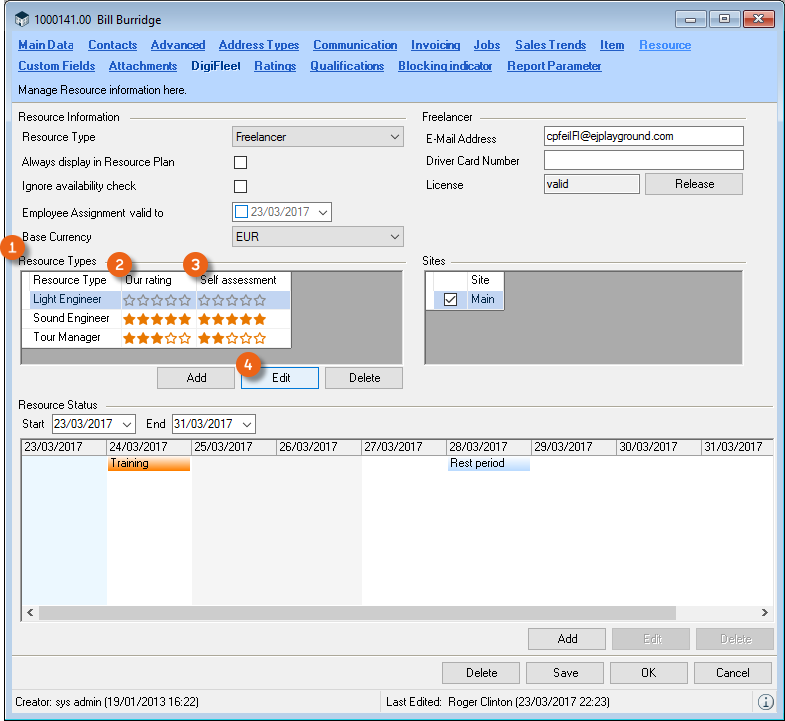
Assigning ratings for Resource Types:
1. easyjob Menu Master Data Addresses
2. Select Address Edit
3. Resource tab
4. Select Resource Type
5. Edit
6. Deifne your own rating and the self assessment of the employee
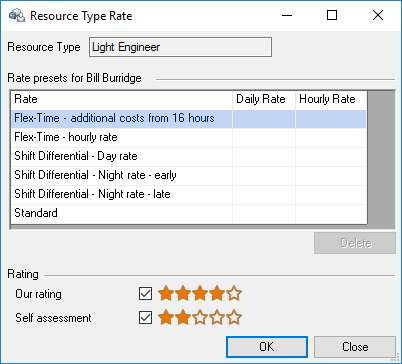
7. Ok
Specifying the minimum quality for a customer
In order to optimally meet the requirements of your customers, you can define a Minimum Rating for the Resources to be booked in the address master data. In this way you can control that for sensitive customers, only employees that fulfil the minimum quality for the respective resource type will be displayed during resource planning and be booked.
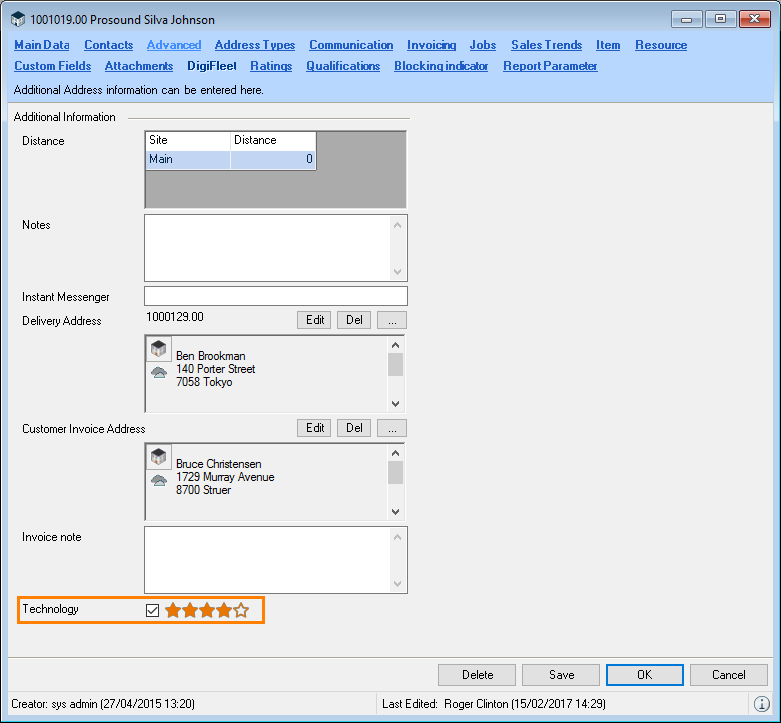
Determining the Minimum Rating:
1. easyjob Menu Master Data Addresses
2. Select Address Edit
3. Enter the Minimum Rating
4. Ok
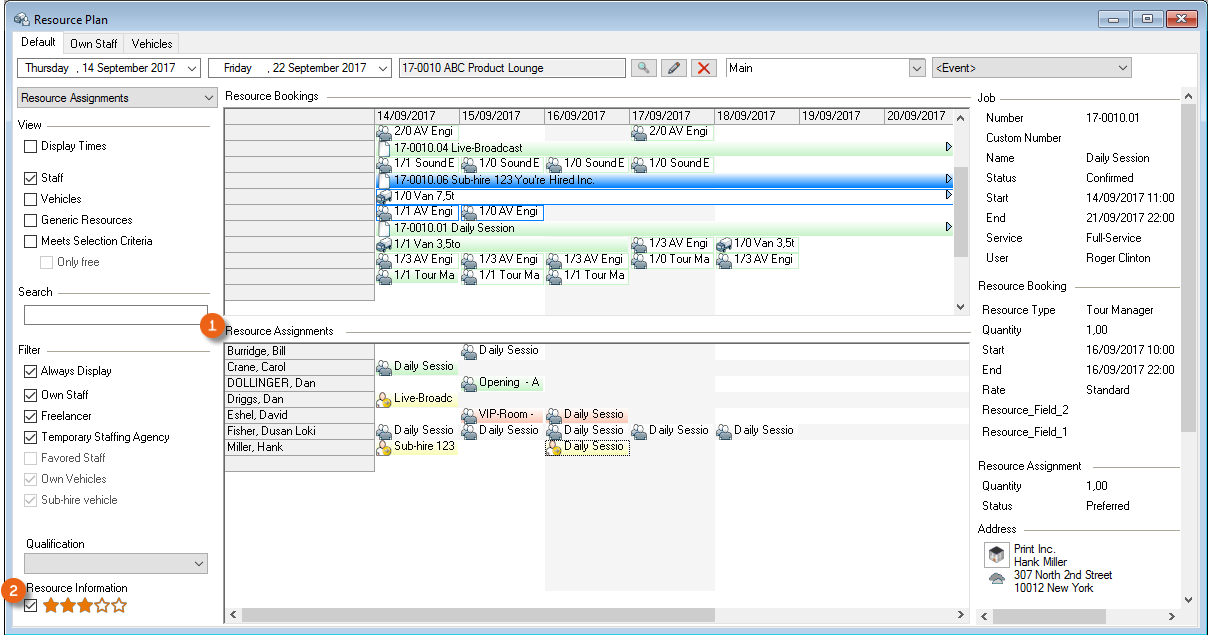
Minimum rating in the Resource Plan
By activating the Quality filter the Resource Plan will only display Resources with a corresponding minimum rating.
Qualifying suppliers
You can also rate the quality of your supplier's Items. You can assign the rating for suppliers in the Address Master Data.
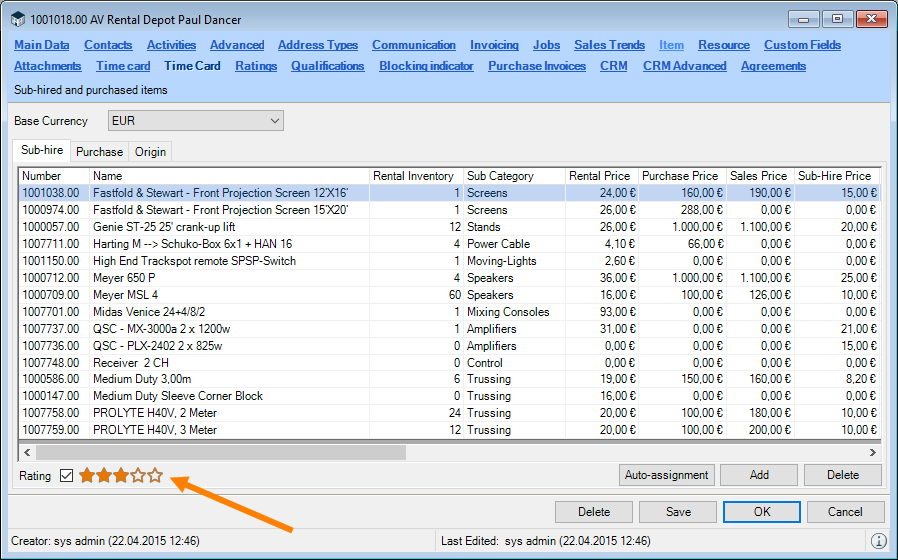
Rating a supplier:
1. easyjob Menu Master Data Addresses
2. Select the supplier
3. Edit
4. Items tab
5. Enter the desired rating
6. Ok
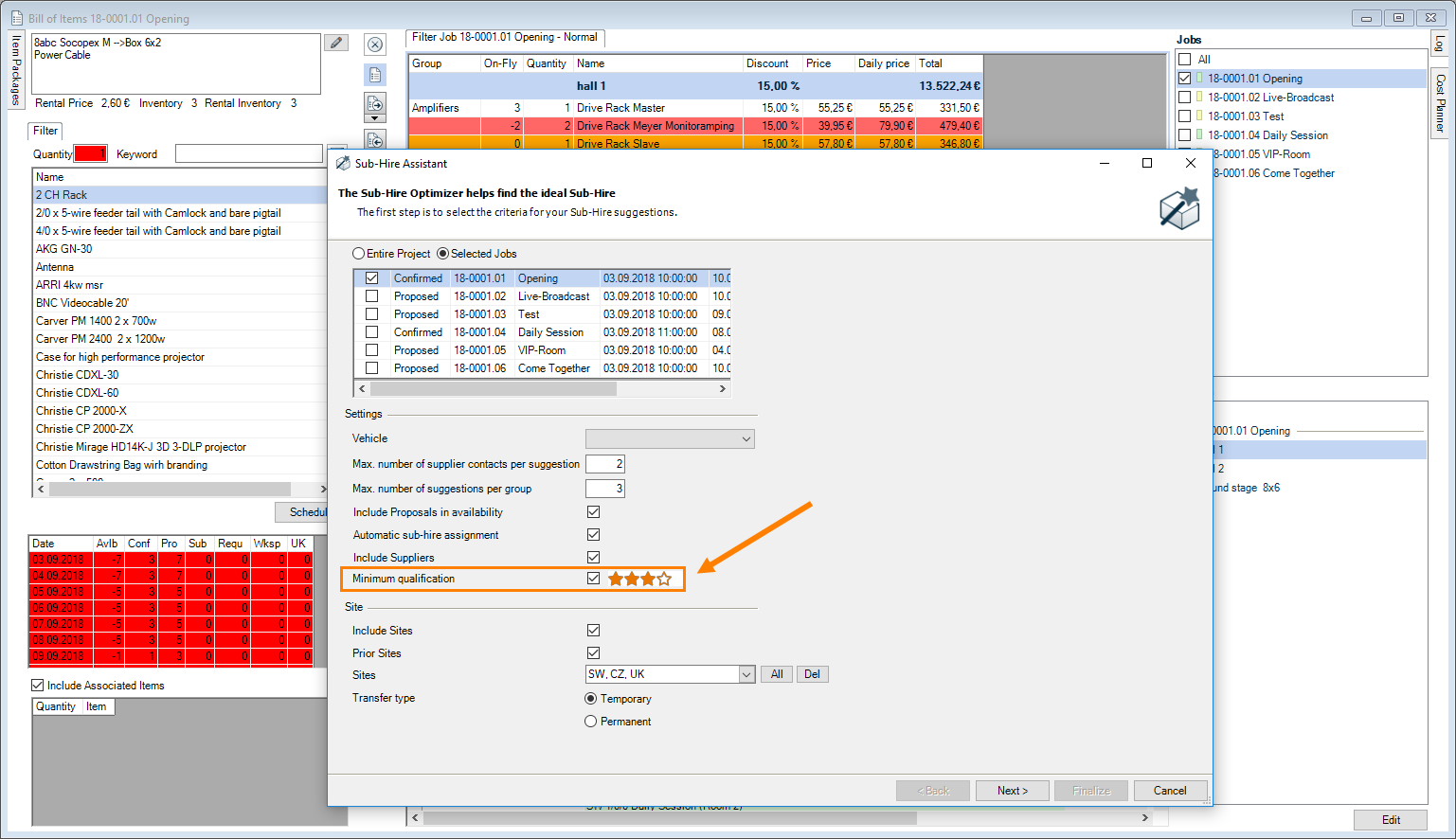
If you use the Sub-Hire Wizard in the Bill of Items, you can indicate here the Minimum quality of your potential supplier, which should be included in the selection.
Rating in the Project
Within a Project, you can rate the performance of the Resources , Suppliers and Schedulers that were used. In addition to a Comment , you can assign zero to five Stars . The average of all assigned Ratings as well as the best and worst rating are displayed in the Overview . With Advanced you can assess the Skills of individual employees.
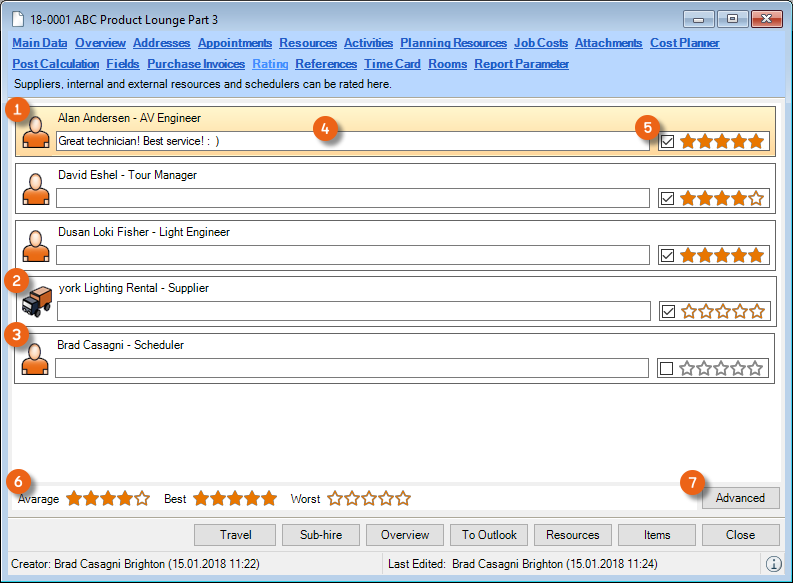
Assigning Ratings in the Project:
1. easyjob Menu Projects Edit Project
2. Select the Project Ok
3. Rating tab
4. Enter all desired Ratings
5. Select a Resource/Scheduler/Supplier
6. Advanced
7. Rate the individual Skills
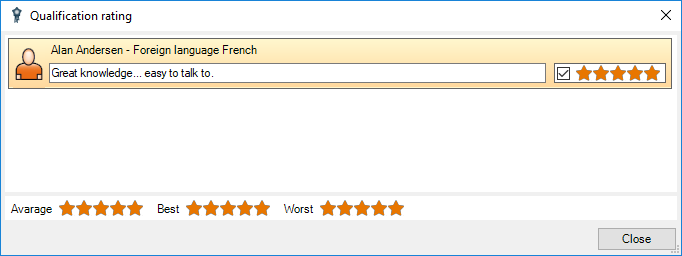
8. Close
9. Ok
10.
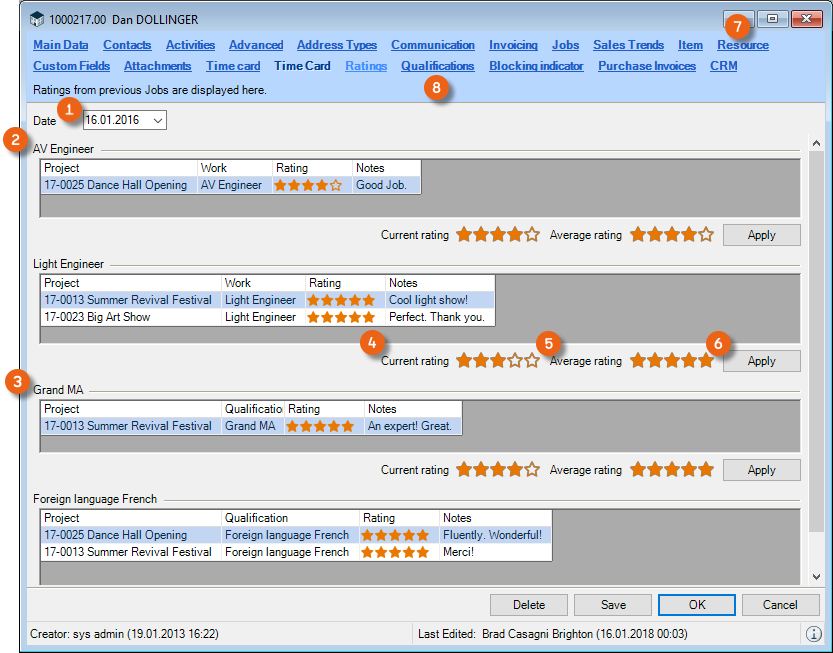
Employee rating
You can view the result of the Ratings from different Jobs for which employees were used in the past at any time in the Address Master Data. By entering a Date you can determine from when the Ratings should be displayed. Ratings are displayed separately according to Resource Type and Skills . For each area, there is a display of the Current Assessment (from Resource for a Resource Type or from skills ) as well as the average Rating for the displayed Projects. With Apply you can accept the current Rating and therefore overwrite the previous Rating in the Resource Type or Skills.